Joomla 5 email templates - how to add variables via plugin
- Link originale: https://magazine.joomla.org/all-issues/february-2025/joomla-5-email-templates-how-to-add-variables-via-plugin
- Tradotto da:: Pietro Strada
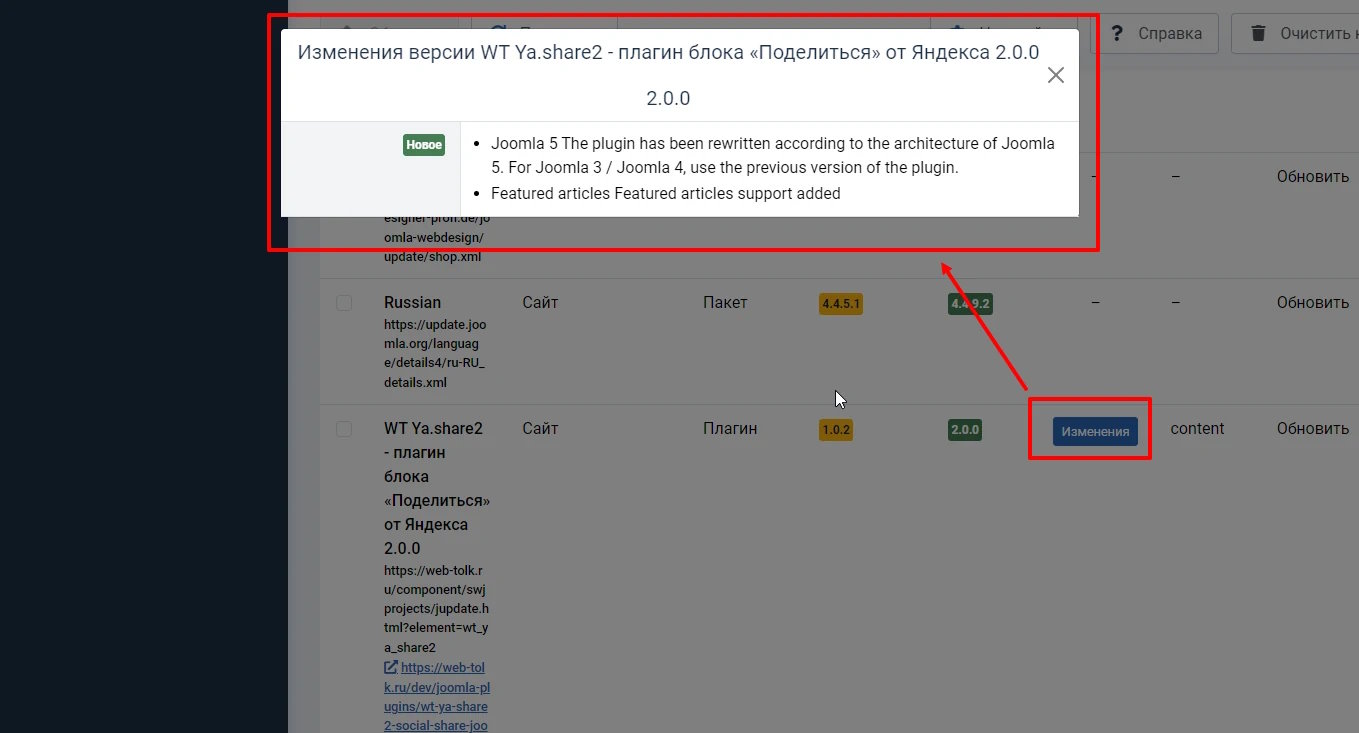
In Joomla 5, customizable email templates have made an entrance, for core and third-party components. They cannot (yet) be added on their own, they are added during the installation.
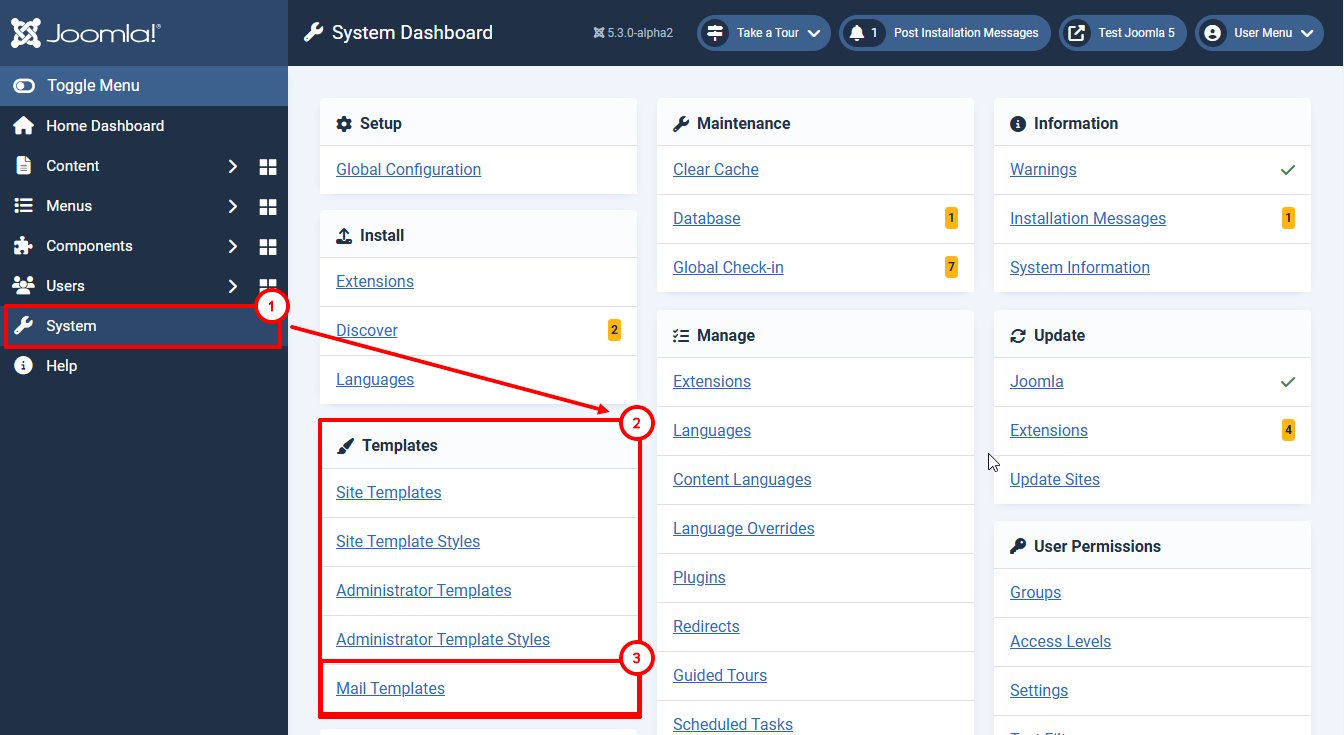
You can edit email templates by clicking System - Templates - Email Templates in the left menu of your Admin Panel. Since Joomla 5.2, you can use HTML format for email templates. When editing the template, you can see that variables like {USERNAME} or {SITENAME} are used in its text. But what if we need to add our own variables to the email template?
A detailed description of this feature will require a separate detailed article, but we will give you a general idea of the email template settings.

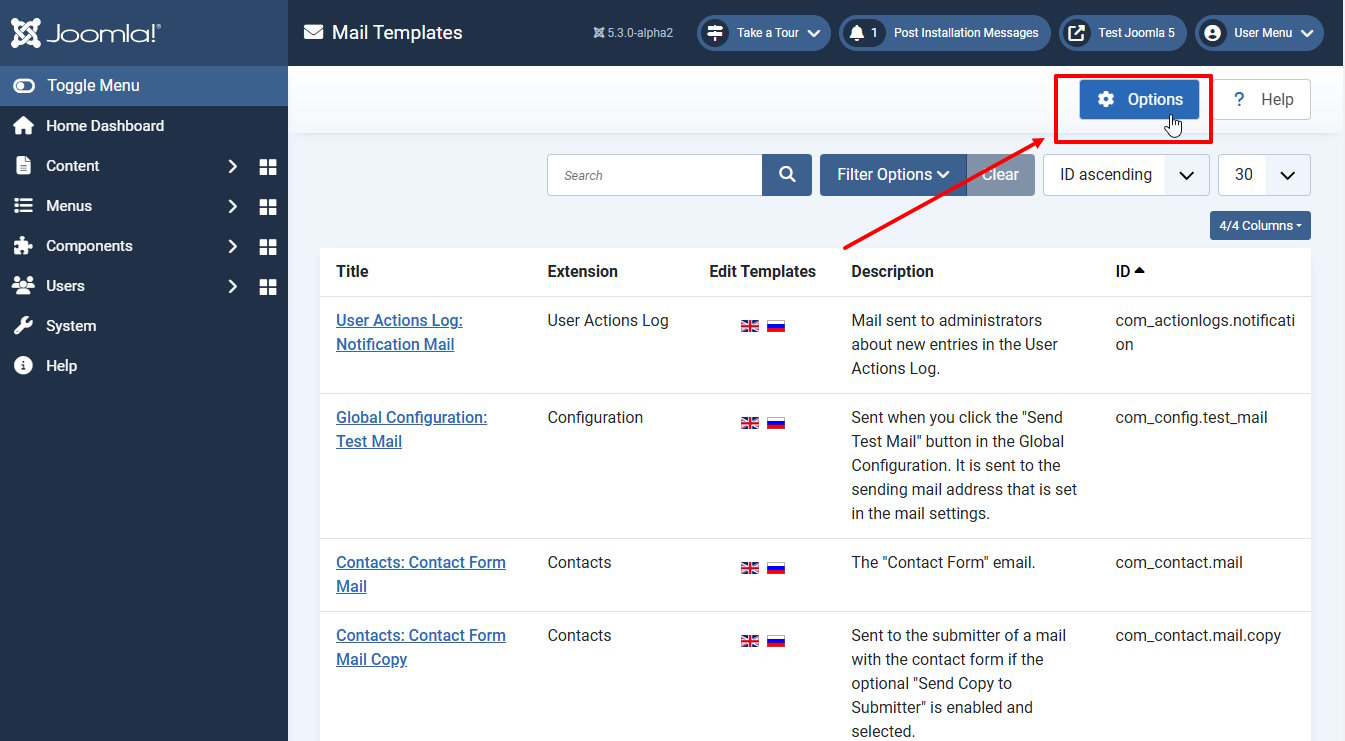
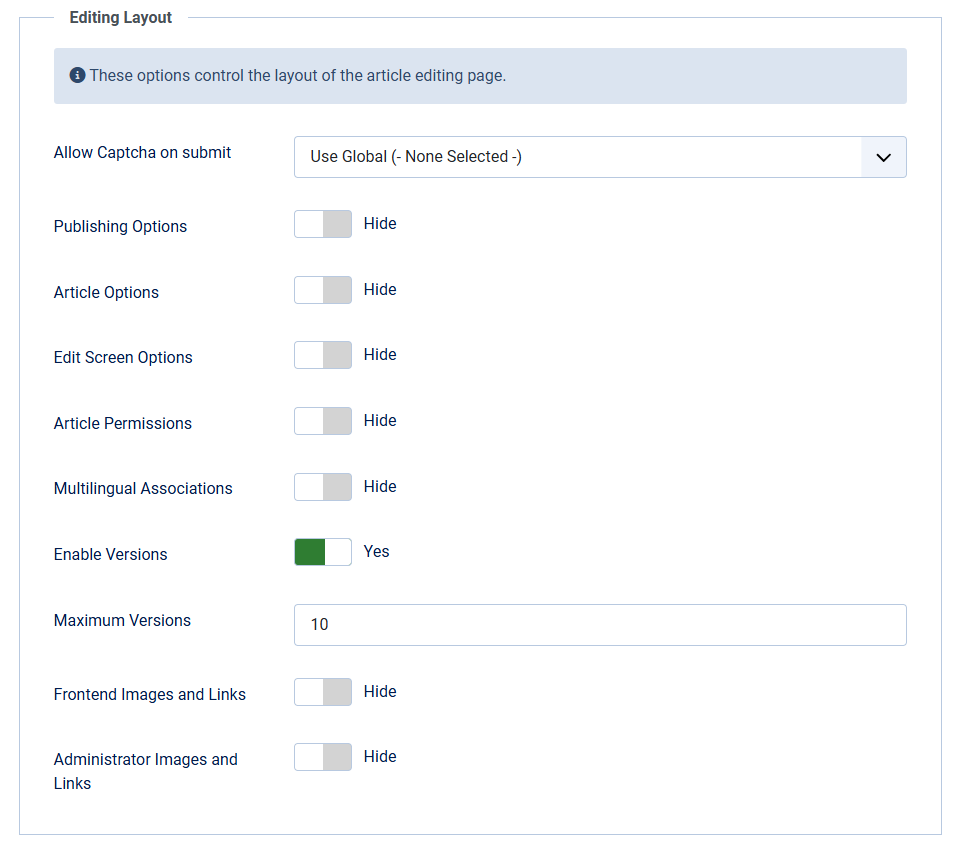
We should go to email template settings (the component options button in the upper-right corner).

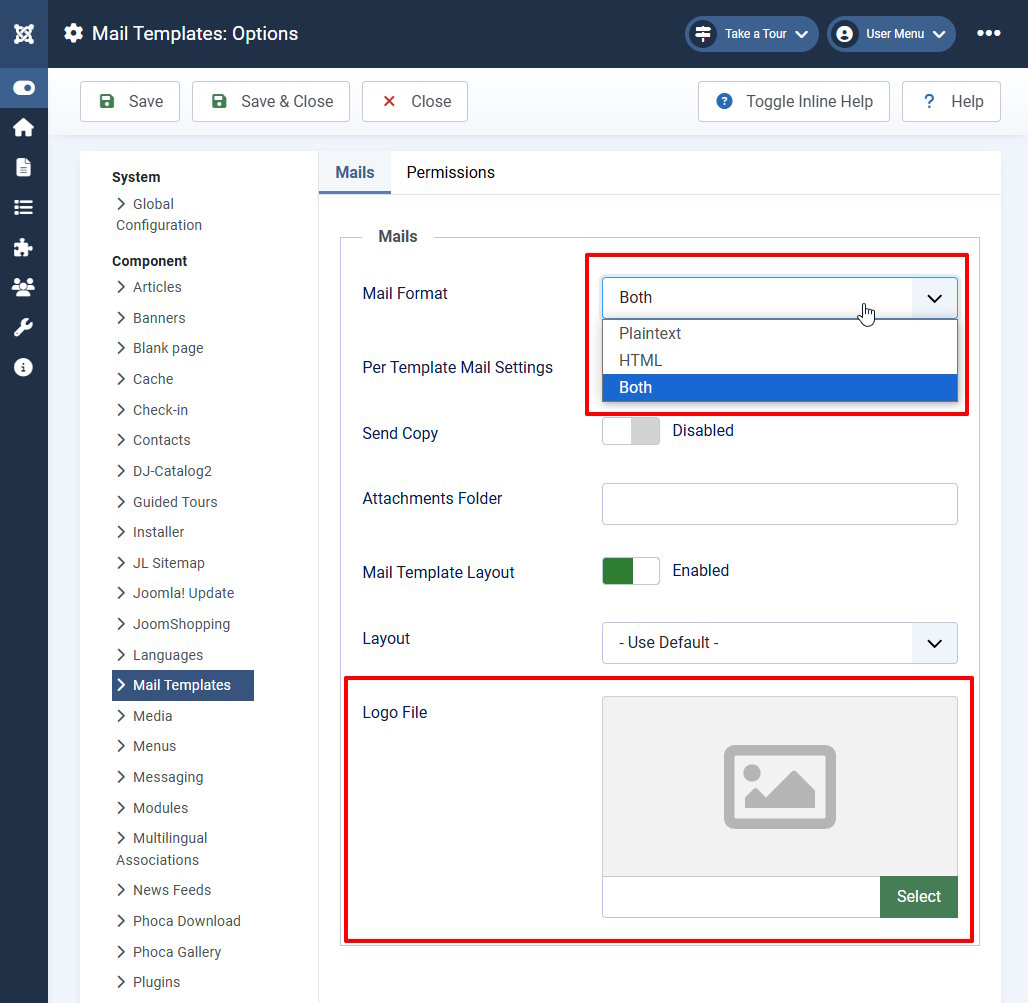
And then we can select the email format text or HTML. Then the layout settings for Joomla email templates become available. These global parameters can be redefined in each specific email template. Thus, you can specify your own layout and logo settings for each of the email templates.

For developers: how do I add my own variables for Joomla email templates?
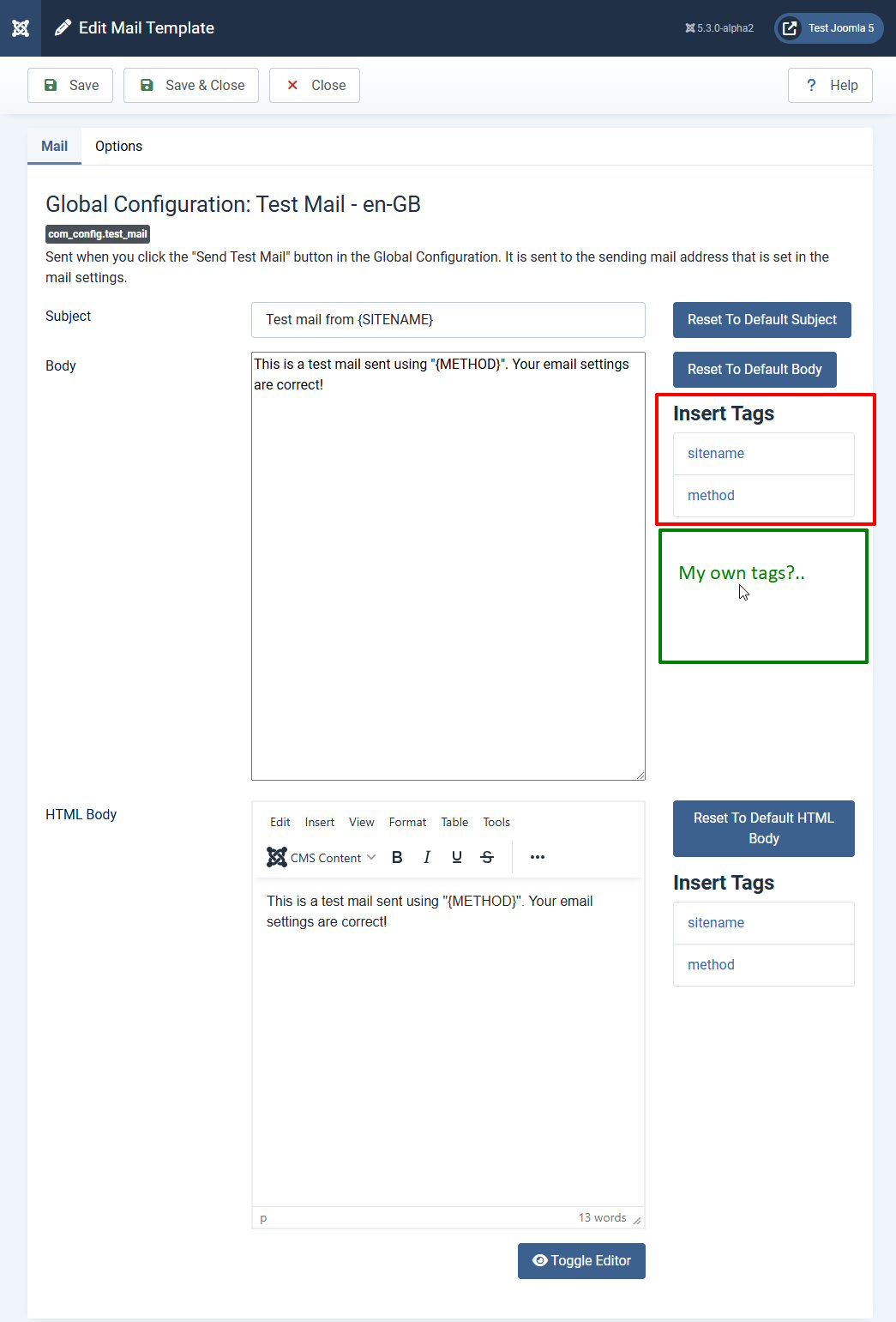
We see different short codes for different types of emails: {NAME}, {SITENAME}, {SITEURL}, and so on are used in Joomla email templates text. What if we need to add our own variables to the email template?

To do this, you need to write a simple plugin (see official docuentation for developers). The developer will benefit from 2 triggers for plugins: onMailBeforeTagsRendering and onMailBeforeRendering.
Plugin trigger onMailBeforeRendering in Joomla
onMailBeforeRendering - This is a trigger that allows you to add your own shortcodes for string replacement in the plugin. You need to send an array of the form like [ variable_name => variable_value ].
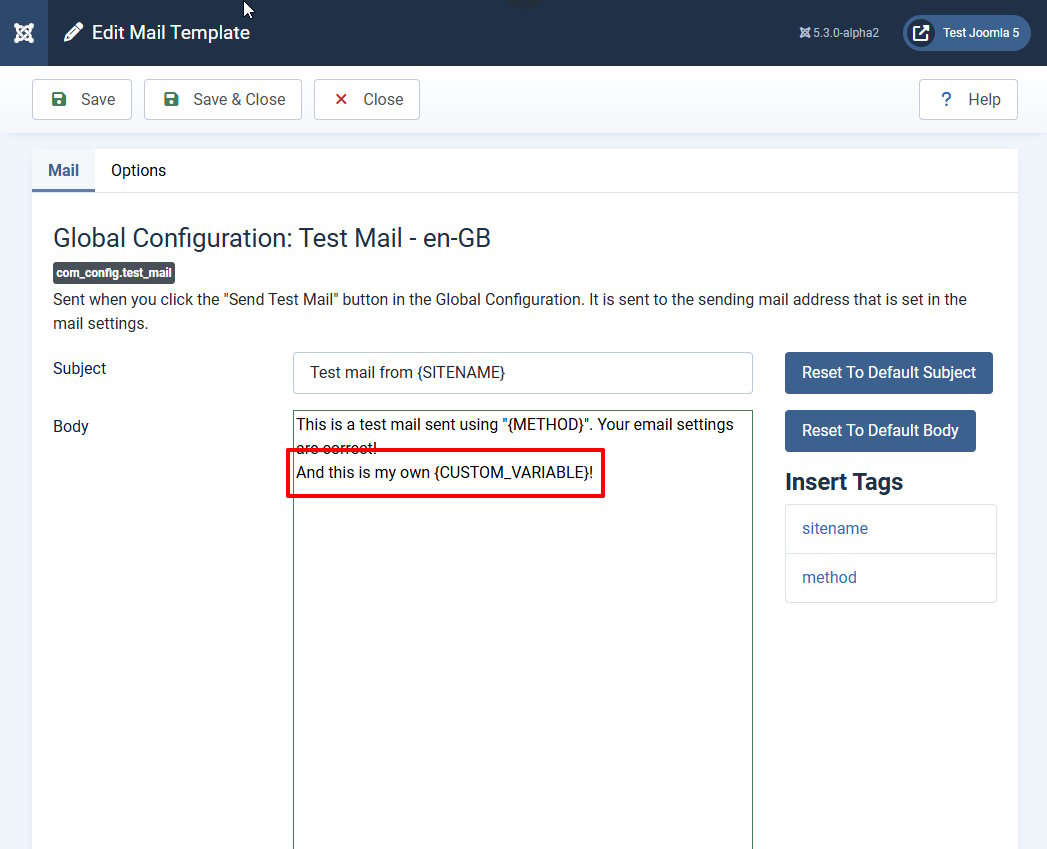
From the admin panel, you need to add your variables with curly brackets: {variable_name} will be replaced by variable_value.

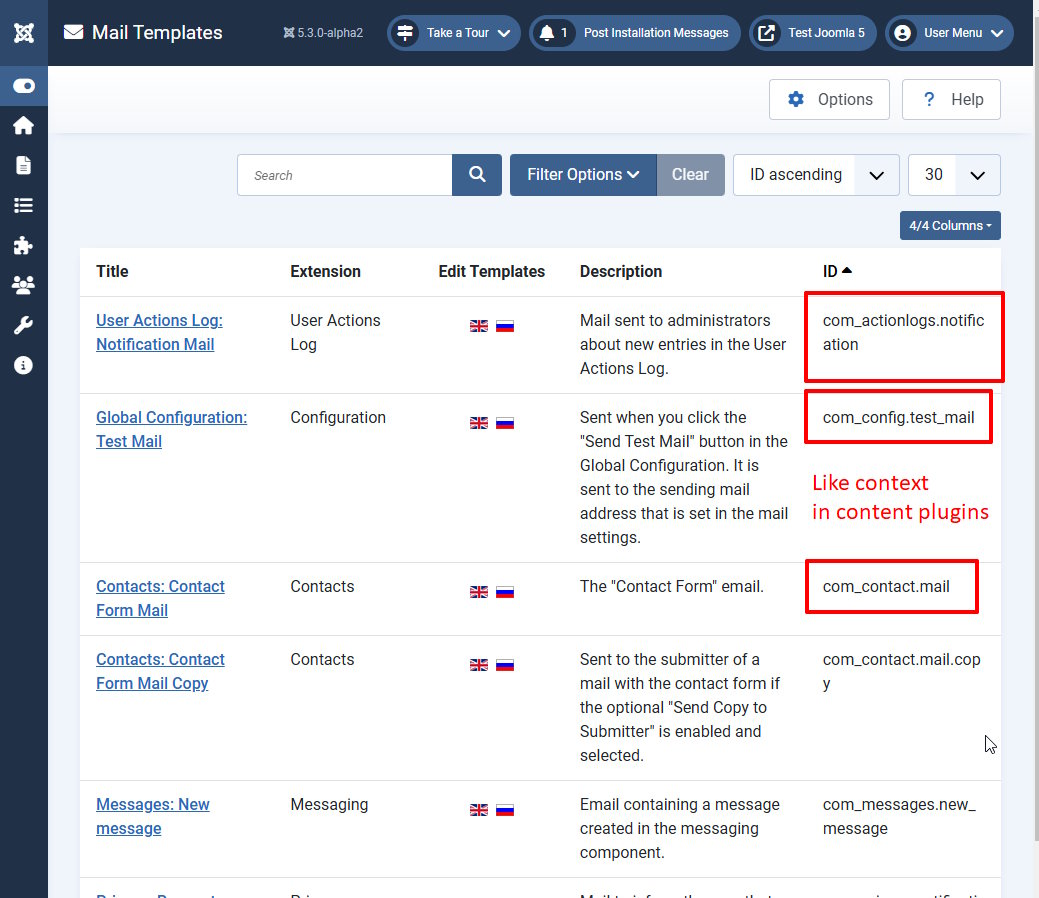
The $event argument of the plugin is an instance of the BeforeRenderingMailTemplateEvent class, which has, among other things, 2 methods: getTemplate() (getting a mailer object where you can add your data) and getTemplateId() (getting the template id of an email like com_users.registration.admin.new_notification), by which we determine whether it is the right email template for us or not. Similar to the context in content plugins.

Also, a useful class property for transferring data from the plugin to the layout of the letter for rendering is $layoutTemplateData. This is an associative array.
<?php
// Get current mailer
$mailTemplate = $event->getTemplate();
$data = [
   'variable_name' => 'variable_value'
];
// since Joomla 4 for all email types. 2nd argument - $plain - plain text format
$mailTemplate->addTemplateData($data, false);
// since Joomla 5.2 - for HTML-emails
$mailTemplate->addLayoutTemplateData($data);

// An example from Joomla core
// Add additional data to the layout template
$this->addLayoutTemplateData([
    'siteName' => $app->get('sitename'),
    'lang'     => substr($this->language, 0, 2),
]);
Let's see all the method:
<?php
use Joomla\CMS\Event\Mail\BeforeRenderingMailTemplateEvent;

public function onMailBeforeRendering(BeforeRenderingMailTemplateEvent $event): void
{
        $templateId = $event->getTemplateId(); // email template id, like context
        $template = $event->getTemplate();//получаем весь объект письма
        $data = [
                'variable_name' => 'variable 1 value',
                'variable_name2' => 'variable 2 value',
        ];

        $template->addTemplateData($data);
        // or...
        $mailTemplate->addLayoutTemplateData($data);
}
Plugin trigger onMailBeforeTagsRendering in Joomla
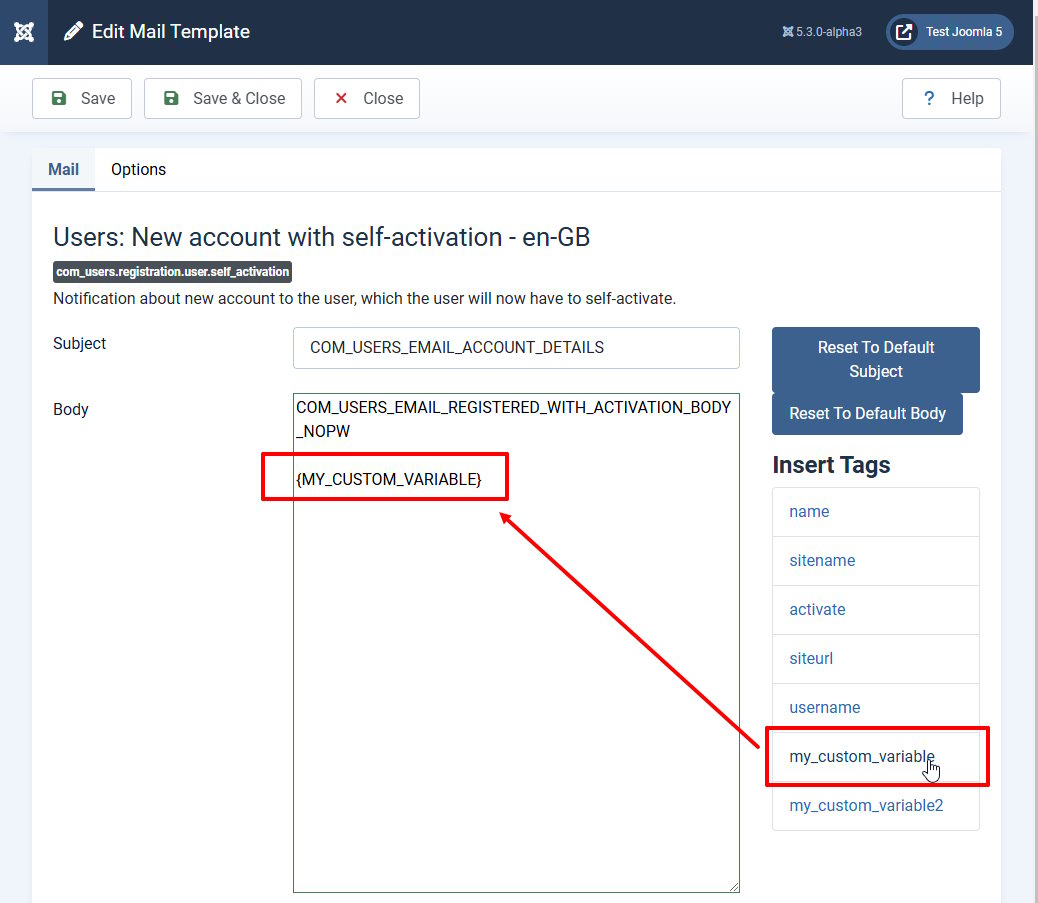
onMailBeforeTagsRendering - this is a trigger that adds your variables to the list of available variables to replace in the edit window of the Joomla email template. We need to create an array for this trigger with the names of the variables, but without their values.
<?php
public function onMailBeforeTagsRendering(Event $event): void
{
    [$templateId, $template] = $event->getArguments();
    $tags =  $template->params['tags']; //get standart short codes
    $tags[] = 'my_custom_variable';
    $tags[] = 'my_custom_variable2';
    // or we can get fields from com_user here
   // Thanks to Alexander Novikov here.
    $user_fields = FieldsHelper::getFields('com_users.user', true); // get user fields
    $newtags = [];
    foreach($user_fields as $field) {
        $newtags[] = $field->name; //combine the array. Our variable is field name
    }
    $tags = array_merge($tags, $newtags); // merge both arrays
    $template->params['tags'] = $tags; // return back
}
Let see the result!

Some articles published on the Joomla Community Magazine represent the personal opinion or experience of the Author on the specific topic and might not be aligned to the official position of the Joomla Project