Lost Your Work? Here's How TinyMCE Can Save the Day
- Link originale: https://magazine.joomla.org/all-issues/february-2025/lost-your-work-here-s-how-tinymce-can-save-the-day
- Tradotto da:: Pietro Strada
We've all been there: you're working on an article in Joomla and close it without saving. Gone is your work - or isn't it? Brian Teeman explains how to retrieve an article you hadn't saved yet.
When Things Go Wrong
A few weeks ago, I was working on a website for a client, writing a very important article. I spent a long time ensuring that my grammar and spelling were perfect and that the article truly represented everything the client wanted to say. And then it happened. I stepped away from my laptop for a coffee, and when I returned, the screen was blank.
The power connector hadn't been properly connected. While I thought I was working on mains power, I was actually running on battery, which had now completely drained. My laptop’s battery hadn’t held much of a charge for several months, but since I mainly work at a desk, I hadn’t made it a priority to fix. What a mistake that was! After reconnecting the laptop to power, rebooting, and reopening the article, my worst fears were confirmed — I hadn’t saved my work. That beautifully crafted, time-consuming article was gone. I cursed, shouted, and may have even thrown the laptop on the floor in frustration.
TinyMCE to the Rescue
You may not know this, but whenever you use TinyMCE to write content in Joomla, it automatically saves a temporary copy of your work. This copy is stored directly in your web browser’s local storage and remains there indefinitely — at least until you press save in Joomla.
How to Recover the Missing Article
- Since the browser’s local storage is site-specific, the first step is to reopen the website.
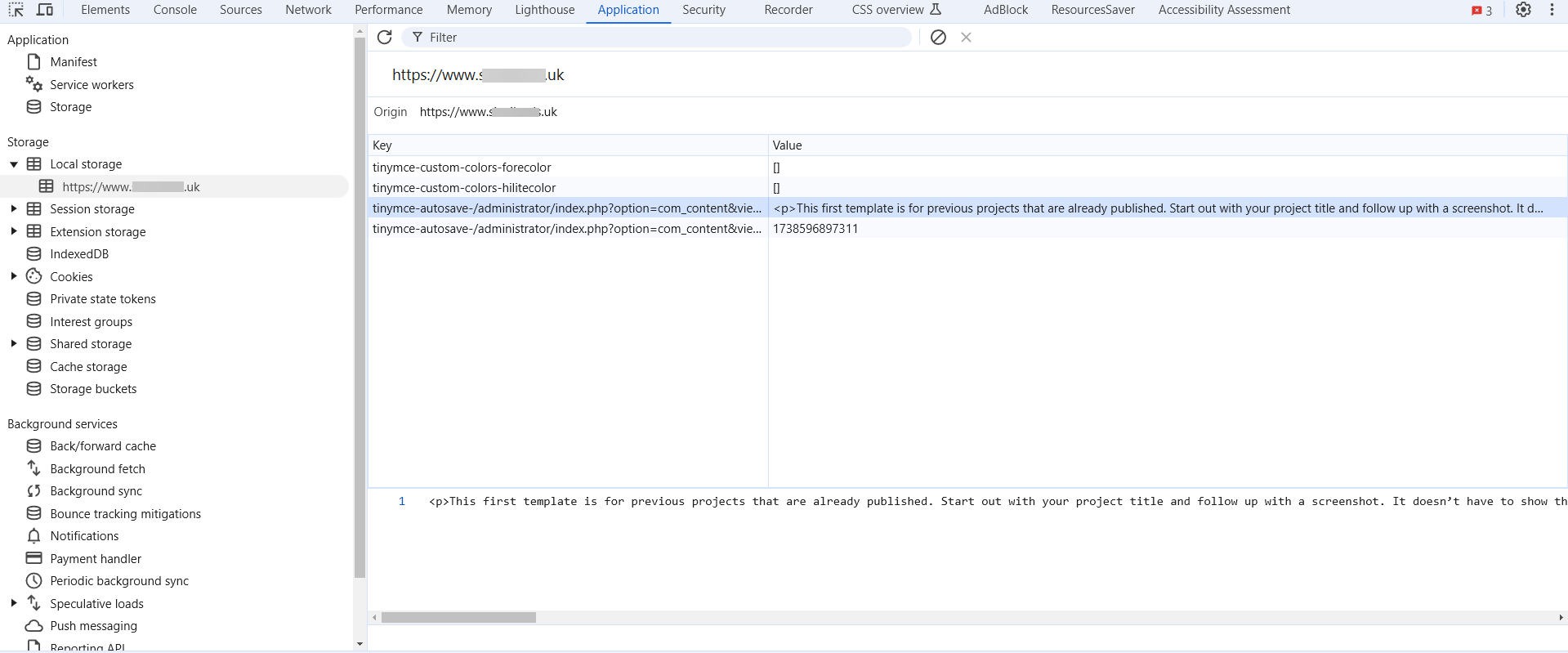
- If you’re using Google Chrome, press F12 on your keyboard to open the Developer Tools.
- Navigate to the Application tab and open the Local Storage section in the sidebar.
- There, you’ll find a complete copy of your article—along with any other unsaved content. Simply copy and paste it back into Joomla, and this time, remember to press save!
The Lesson Here?
With the right tools at your disposal, nothing is ever as bad as it seems at first.
Some articles published on the Joomla Community Magazine represent the personal opinion or experience of the Author on the specific topic and might not be aligned to the official position of the Joomla Project