Do more with the Joomla dashboard
As a web designer or developer, you work hard every day to create beautiful and efficient websites. But what about the Joomla Dashboard? Do your clients tell you Joomla is too difficult, or do you still struggle with illogical menus, unnecessary tabs, and a pile of information you never use? Good news: you can fully customize the admin panel to your needs! No more frustrations - just a backend that works for you.
In this article, you'll discover how to make the Joomla Dashboard more efficient and organized - so you have more time for what really matters, making website management enjoyable for both you and your clients.
1. Customize the Atum backend template
The default Joomla backend template, Atum, offers various customization options. Through System > Administrator Template Styles, you can:
- Adjust colors: Match them to your client’s or your own brand. It’s also useful for distinguishing development environments from production environments, so you immediately see if you're working in the right tab of your browser.
- Add logos: You can set three different logos: on the login screen, above the menu and above the collapsed menu.
- Custom CSS: Add custom styles via the file /media/templates/administrator/atum/css/user.css. For example, you can create a more compact design using this handy user.css, available on GitHub.
Just another example of a custom CSS backend:

Backend with custom CSS
Or choose one of the alternative backend templates: For those who want something different, various ready-made backend templates are available via TemplateJoomla.
2. Manage user permissions
The admin panel becomes simpler when users have fewer options. Grant users only the permissions they truly need. Super User, Administrator and Manager are the default groups with admin rights (but you can create custom groups, of course).
Setting access permissions in Joomla can be complex, but the PWT ACL extension makes it easy. With this tool, you can:
- Refine access in a single overview.
- Export and import permissions.
- Restore permissions if something goes wrong.
3. Customize admin menus
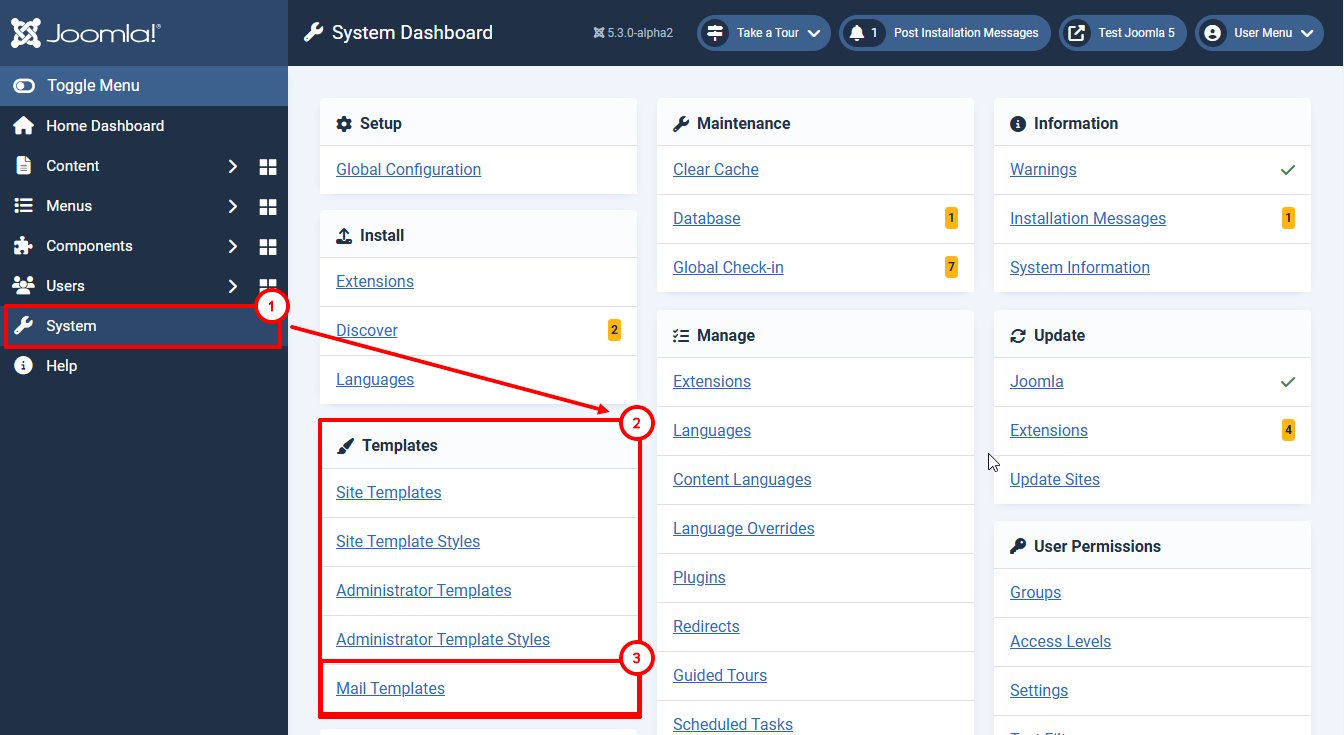
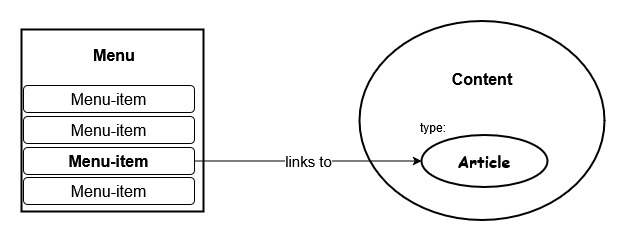
A well-organized menu increases user productivity. Joomla allows you to customize admin menus via Menus > Manager. Select “Administrator” in the top-left dropdown. Create an administrator menu (you can select a preset to start) and link the menu module to the right access level. Now the users sees only the menu-items they need.
4. Disable unused core extensions
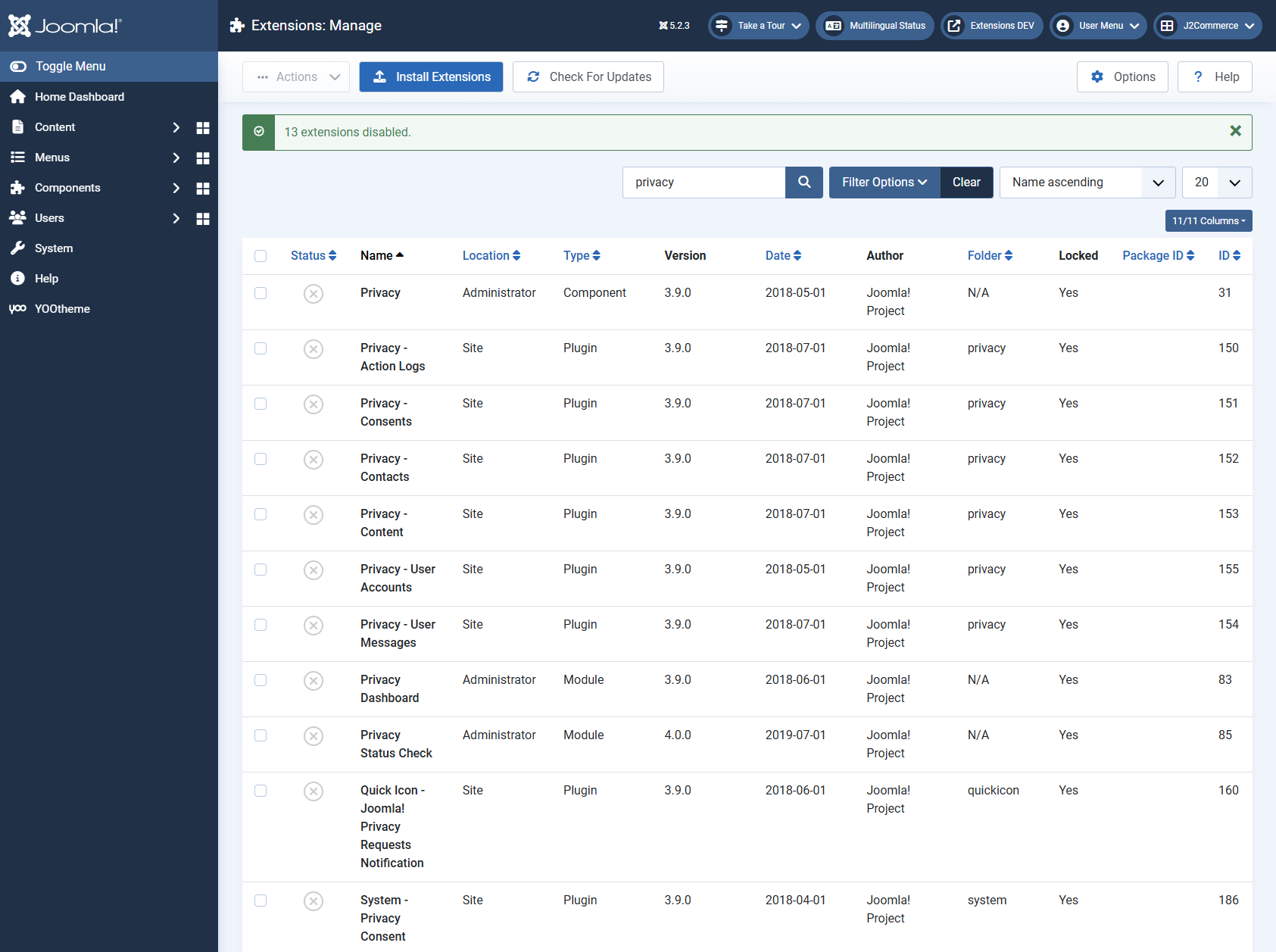
Not all standard Joomla extensions are needed for every website. Unpublish unused extensions (don’t delete them).
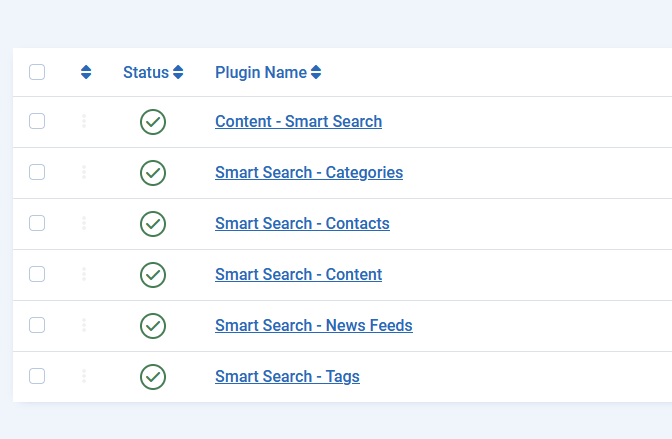
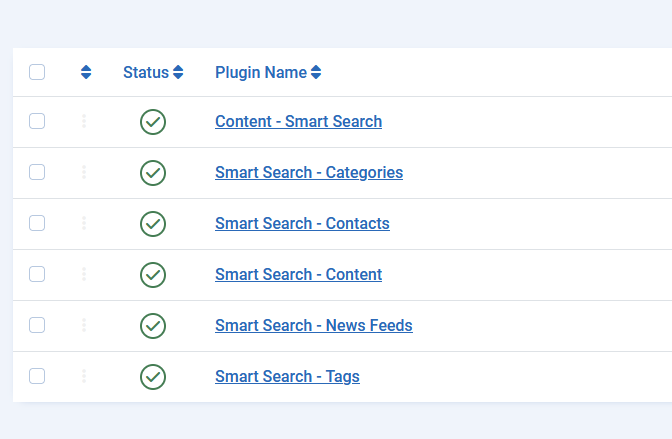
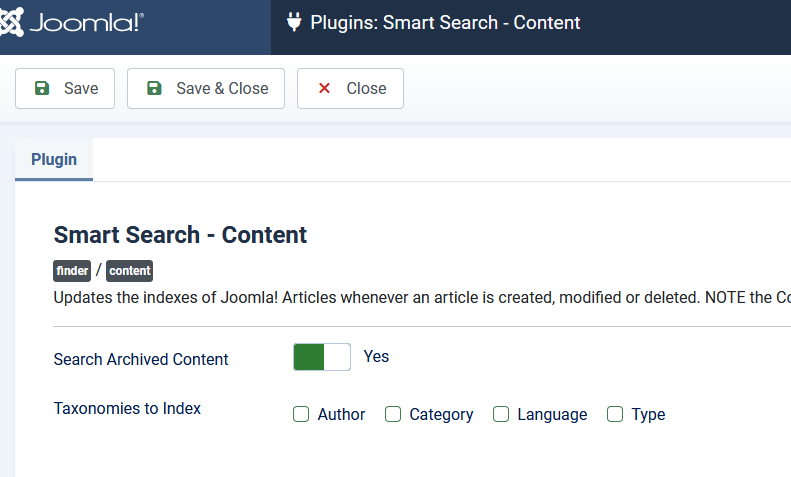
Not every website uses extensions like Privacy, Schema.org, Web Services, Banners, Newsfeeds, Contact or Smart Search. Unpublishing them makes management clearer and faster.

Disabled core extensions
5. Reduce tabs in article management
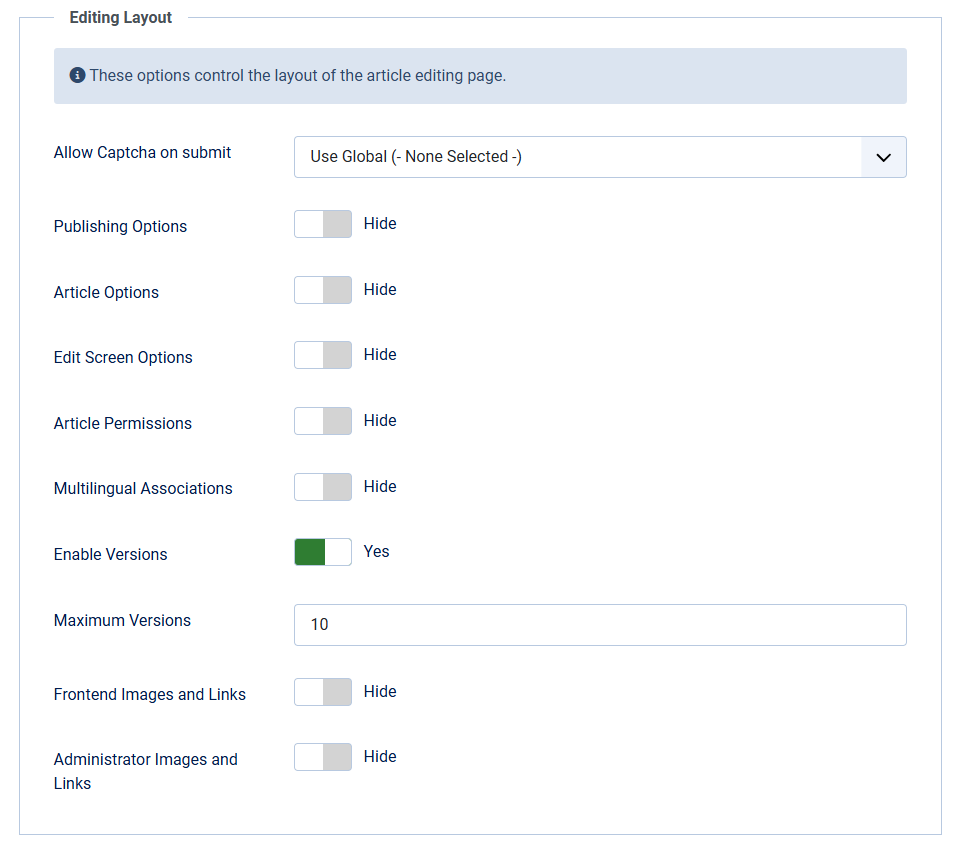
Article management can be made simpler and more efficient by disabling unnecessary tabs. This can be done via:
Content > Articles > “Options” button > [TAB: Editing Layout]

Editing Layout - options
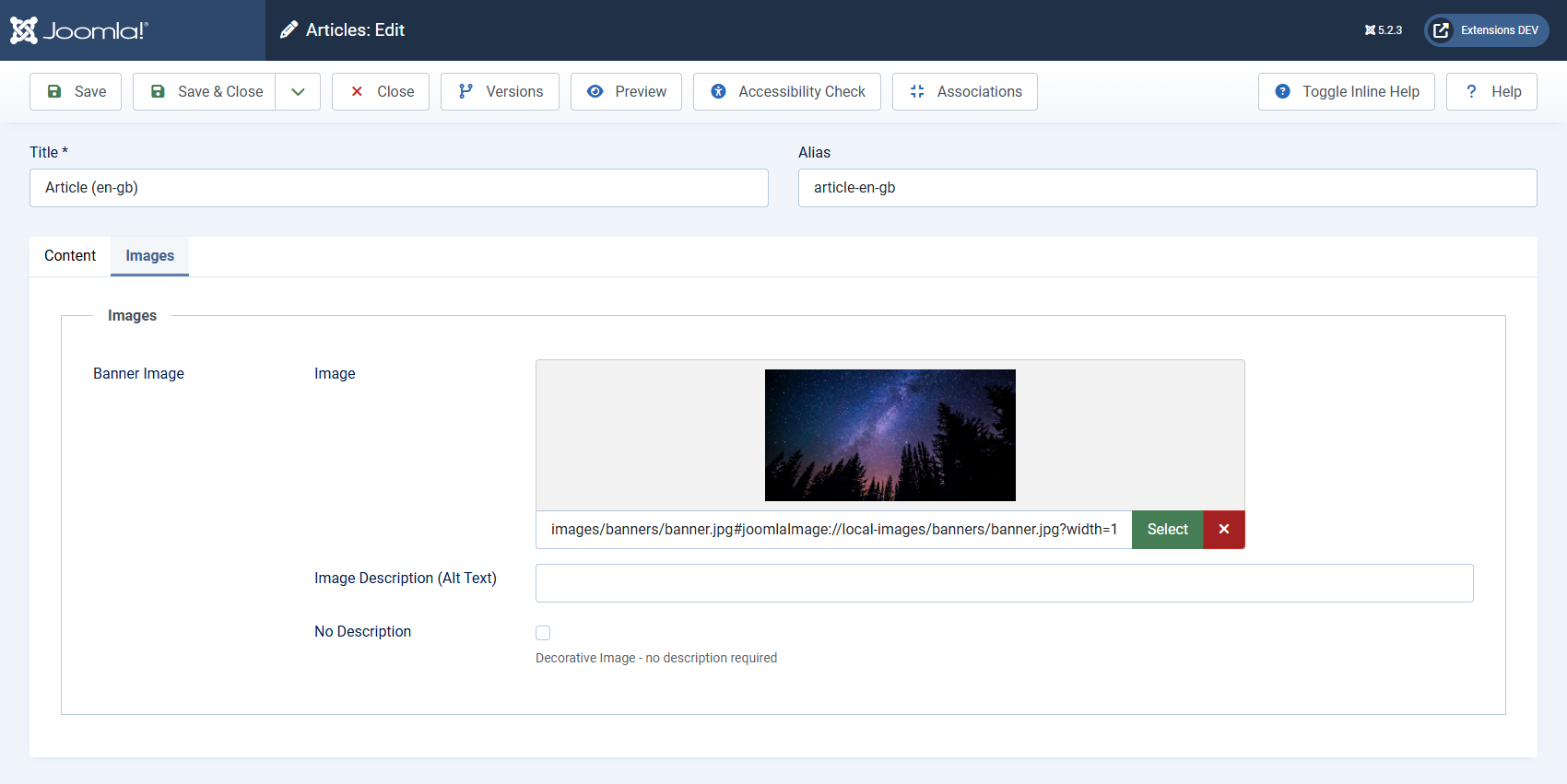
The default “Images and Links” tab has a lot of fields that are often unnecessary. For small adjustments, such as adding a single image, use custom fields instead.

Editing Article - Images tab with custom field
6. There are multiple dashboards
Multiple dashboards can provide a focused workspace for different users:
- Content Dashboard: For content managers with direct access to articles and media libraries.
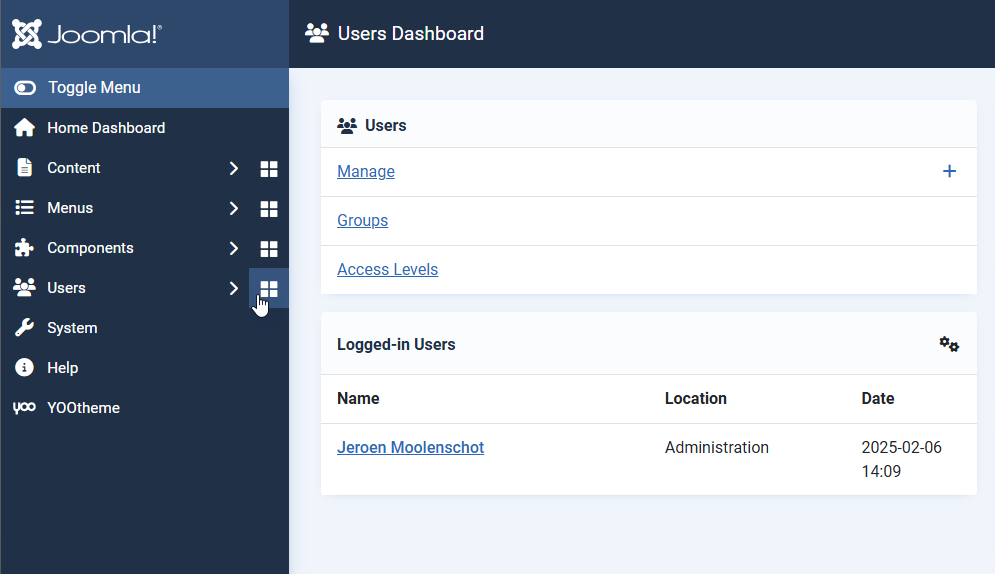
- User Dashboard: For administrators focusing on user management.

User Dashboard
Use the Quick Admin Redirect plugin to automatically redirect users to their relevant dashboard upon logging into the administrator..
In this article you’ll find more information about custom Dashboards: https://magazine.joomla.org/all-issues/february-2022/joomla-4-for-clients-part-2-creating-a-custom-admin-experience (it's about Joomla 4, but the functionality works in the same way).
7. Add shortcuts and icons
An efficient dashboard includes useful shortcuts. With Joomla’s Core Quick Icons module, you can easily add links to core components such as articles or modules.
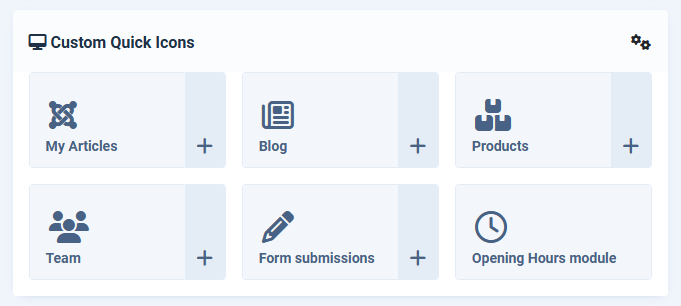
The Custom Quick Icons extension offers extra features, including links to:
- A single article or module
- A selection of articles (such as “My Articles” or a specific category)
- A menu item from any third-party component
- A custom link
- Predefined buttons for the big Joomla E-commerce solutions.
- Over 6,000 icons to choose from
- Custom icon colors

Custom Quick Icons module
8. Use notes and to-do lists
For better organization and collaboration, use the Core Custom HTML module: add a simple notes module to the dashboard.
For more functionality, such as easier editing or note downloads, you can use extensions like: Rick Spaan’s mod_notepad: Available on GitHub or Joomill Admin Notes
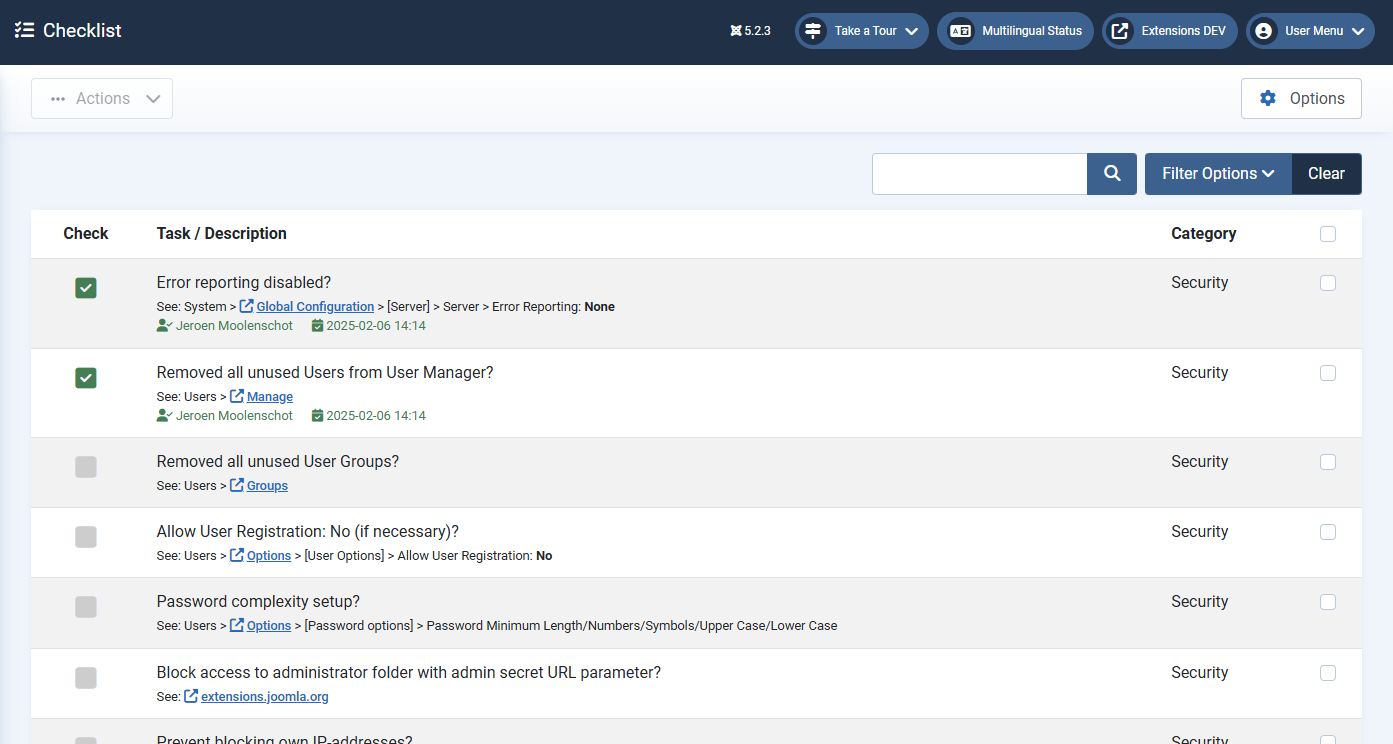
For task lists, you can use: Brian Teeman’s Tasklist, Available on GitHub or Joomill’s Admin Checklist.

Joomla Admin Checklist extension
9. Useful extra extensions
Once the dashboard is cleaned up, you’ll have space for other useful extensions.
Some examples:
db8 404 Errors: Displays 404 errors and links directly to the redirect component.
db8 Colors: Shows used colors with hex values—great as a style guide.
db8 Backend Content Images: Displays images in the backend category and article lists.
Weeblr’s 4Analytics: Privacy-friendly analytics running within your Joomla site.
Weeblr’s 4Command: Complements Joomla's classical menu-based navigation system with a command palette and keyboard shortcuts.
I’d love to hear the extensions you use to manage your site!
Conclusion
The Joomla Dashboard offers countless possibilities to work more efficiently and simplify website management. By implementing the tips and tools described above, you can create a workspace that is not only functional but also fully tailored to your needs or those of your clients.
Whether you're a developer managing multiple sites or a user who simply wants to navigate quickly—customizing the dashboard is worth it. Joomla is Yours! (also the backend)
Some articles published on the Joomla Community Magazine represent the personal opinion or experience of the Author on the specific topic and might not be aligned to the official position of the Joomla Project