Floating Labels and how to use them in your Joomla website
You may have seen them in form fields: labels that seem to float above the field as you're typing. Can you make those in your Joomla website as well? Yes you can! Brian Teeman explains how.
What are Floating Labels?
Floating labels are a UI design pattern often used in form fields where the placeholder text for an input field moves or "floats" above the field as the user starts typing. This pattern was popularized by Google’s Material Design guidelines.
How Floating Labels Work:
- Initial State:
The label appears as placeholder text inside the input field. - Focused State:
When the user clicks or focuses on the input, the placeholder text animates and moves above the input field. - Filled State:
After the user enters data, the label remains above the input field to provide context for the entered data.
Advantages of Floating Labels
- Space Efficiency:
Combines the roles of placeholder text and field labels, reducing clutter and saving space. - Improved Usability:
Ensures context is always available (e.g., users can see what the field represents even after entering data). - Enhanced Visual Appeal:
Adds a polished and modern look to forms. - Accessibility:
Provides a better experience for screen readers and improves usability for visually impaired users, compared to placeholders that disappear on focus. The alternative is to hide the label using CSS and only make it visible to screen readers. (This is what Joomla does with the default login module).
Disadvantages of Floating Labels
- Cognitive Load:
Users may initially find the transition distracting, especially if the animation is overly dramatic or not smooth. - Complex Implementation:
Requires creating a Joomla override. Floating labels are not possible with the default Joomla markup for fields. - Reduced Placeholder Functionality:
Floating labels cannot provide detailed guidance or examples in the placeholder itself (e.g., "e.g., This email address is being protected from spambots. You need JavaScript enabled to view it."). - Inconsistent Behaviour:
If not designed well, users might confuse the floating label with entered data.
Joomla Implementation
The CSS for Bootstrap 5.3 (which is used by the Cassiopeia template) natively supports floating labels you just need to add the required CSS classes and structure the markup in the required order.
Quick Setup
Wrap a pair of
<input class="form-control"> and <label> elements in .form-floating to enable floating labels with Bootstrap’s textual form fields. A `placeholder` is required on each <input> as Bootstrap's CSS-only floating labels uses the :placeholder-shown pseudo-element. Also note that the <input> must come before the <label>.
Example - Login Module
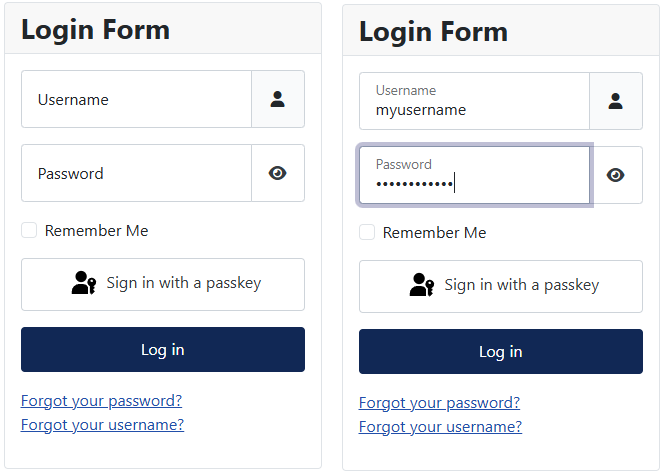
This is quite an easy template override to create. Change the markup for the username and password field by adding an extra <div class="form-floating"> around the fields and removing the class="visually-hidden" from the label. The changed code should look like the code below.
Username
<div class="input-group">
    <div class="form-floating">
        <input id="modlgn-username-<?php echo $module->id; ?>" type="text" name="username" class="form-control" autocomplete="username" placeholder="<?php echo Text::_('MOD_LOGIN_VALUE_USERNAME'); ?>">
        <label for="modlgn-username-<?php echo $module->id; ?>"><?php echo Text::_('MOD_LOGIN_VALUE_USERNAME'); ?></label>
     </div>
        <span class="input-group-text" title="<?php echo Text::_('MOD_LOGIN_VALUE_USERNAME'); ?>">
            <span class="icon-user icon-fw" aria-hidden="true"></span>
        </span>
</div>
Password
<div class="input-group">
    <div class="form-floating">
        <input id="modlgn-passwd-<?php echo $module->id; ?>" type="password" name="password" autocomplete="current-password" class="form-control" placeholder="<?php echo Text::_('JGLOBAL_PASSWORD'); ?>">
        <label for="modlgn-passwd-<?php echo $module->id; ?>" ><?php echo Text::_('JGLOBAL_PASSWORD'); ?></label>
    </div>
        <button type="button" class="btn btn-secondary input-password-toggle">
        <span class="icon-eye icon-fw" aria-hidden="true"></span>
        <span class="visually-hidden"><?php echo Text::_('JSHOWPASSWORD'); ?></span>
    </button>
</div>
Result
More Info
Check out the official Bootstrap documentation for Floating Labels for more examples. Remember an input must have a placeholder and come before the label.
Some articles published on the Joomla Community Magazine represent the personal opinion or experience of the Author on the specific topic and might not be aligned to the official position of the Joomla Project