Stop searching, start filtering!
Ever wished you could use a filter to refine your search results? Nadja Lamisch shares with us how to do it with just core Joomla. No extensions needed!
Joomla’s search feature, Smart Search, has been paet of the core for a number of years now. You can find it under Components -> Smart Search. Many of you have probably already used it.
Today I would like to show you how to extend the search with additional options: filters.
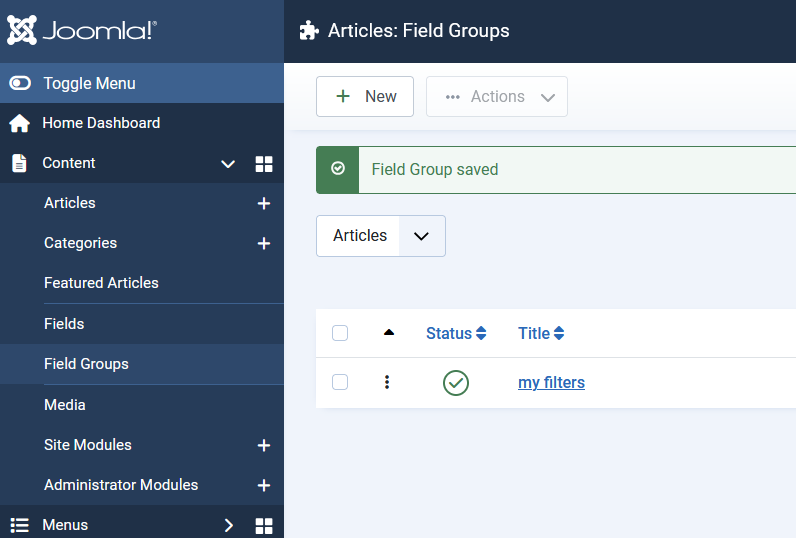
To do this, we will first create a field group. I have called it ‘my filters’.
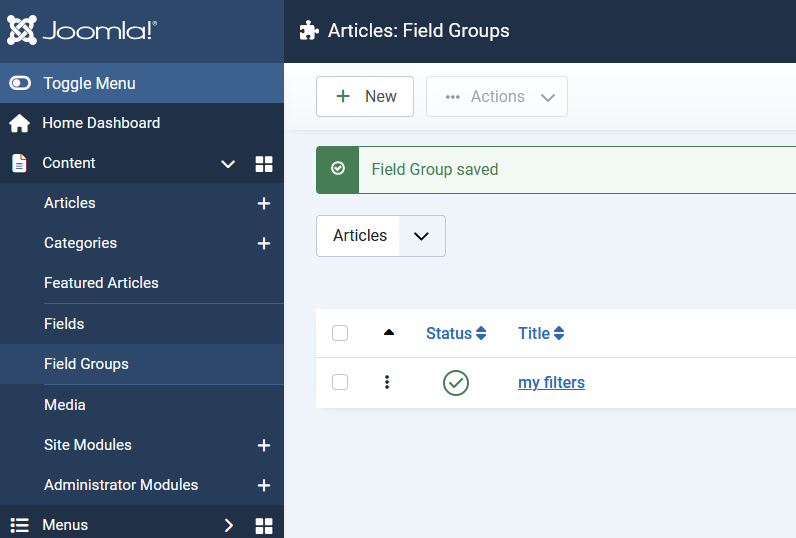
Field group
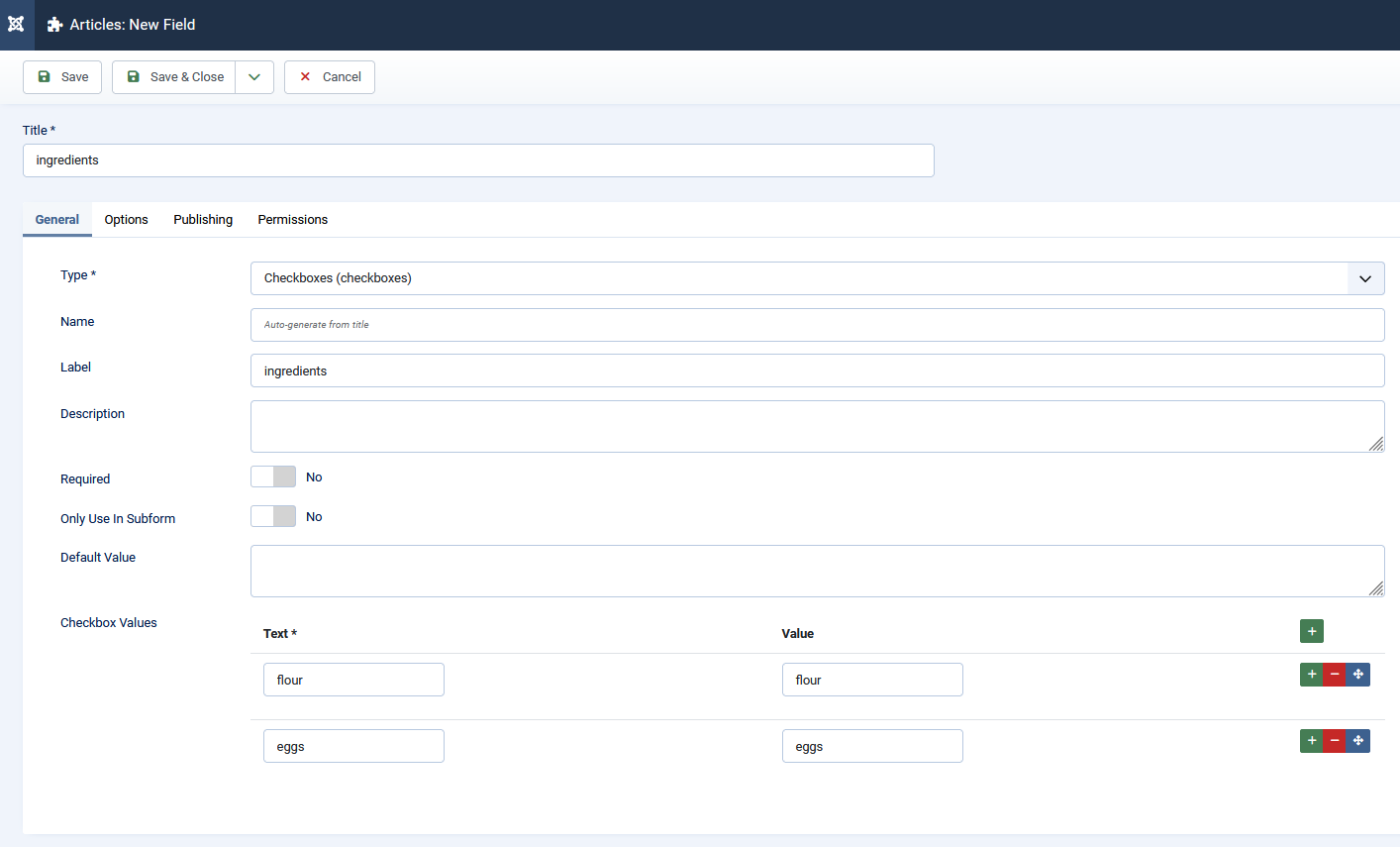
We then create our user-defined fields as checkboxes. Set the fields in the ‘Search index’ area to ‘Make searchable and add as taxonomy’ in the options at the bottom. That way we can also create filters for these fields.

Field options for search
We enter our values for the individual checkboxes in the ‘Checkbox values’.

Custom field
Select our previously created group as the field group (in my case this is ‘my filters’).
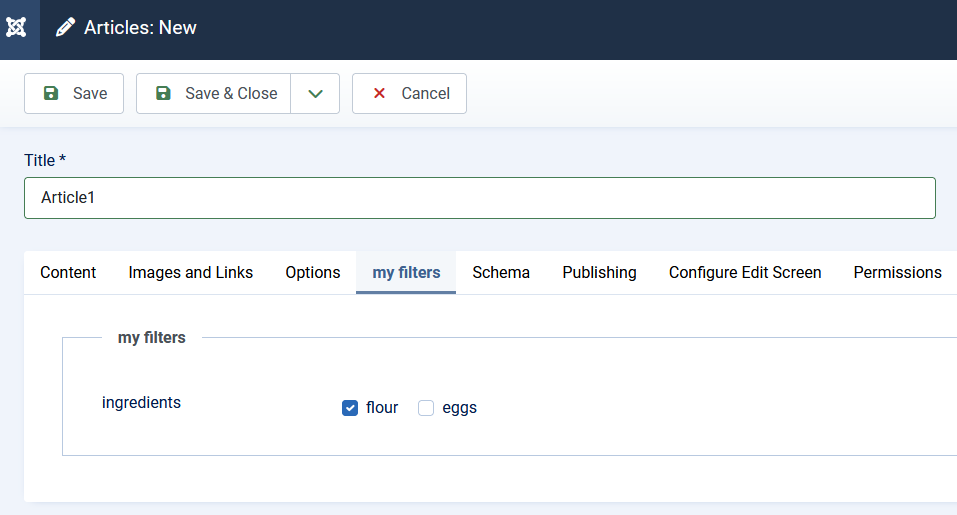
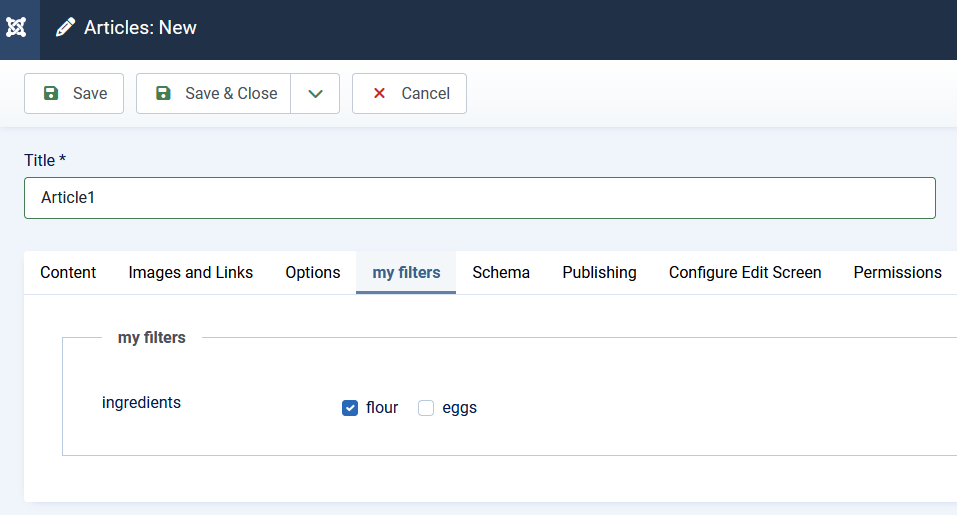
Now we create a new article. I can see my checkboxes in the ‘my filters’ tab and can select them accordingly.

Tab with field in the article
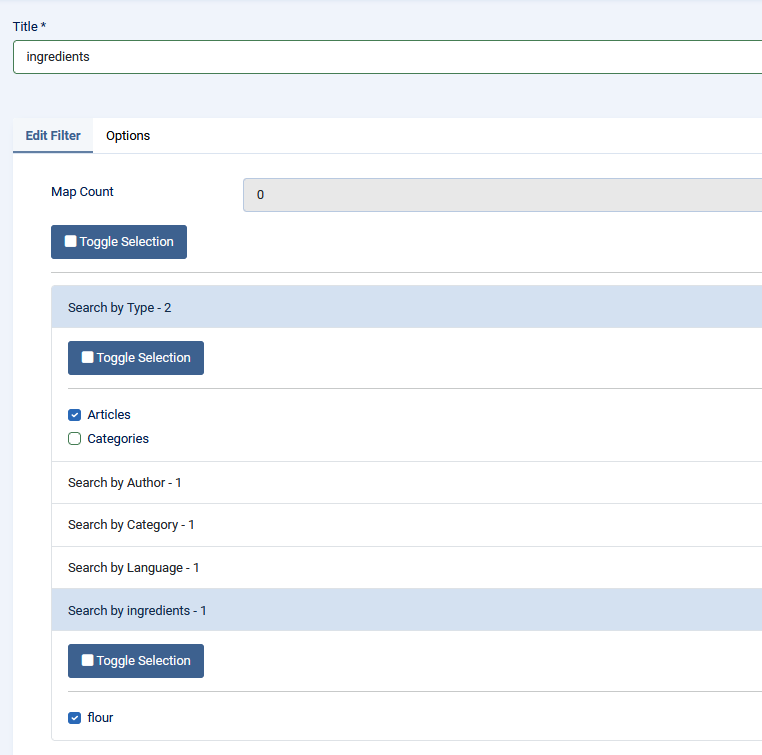
We can now create our desired filters under Components -> Smart Search -> Filters.

Filter in Smart Search
Please don't be surprised, your fields from the checkboxes will only appear for selection if you have already selected them in an article. I have only selected ‘flour’ in my article. That's why I only have ‘flour’ as a filter selection. As soon as I have created further articles with the other options, I will also see them here in the filters.
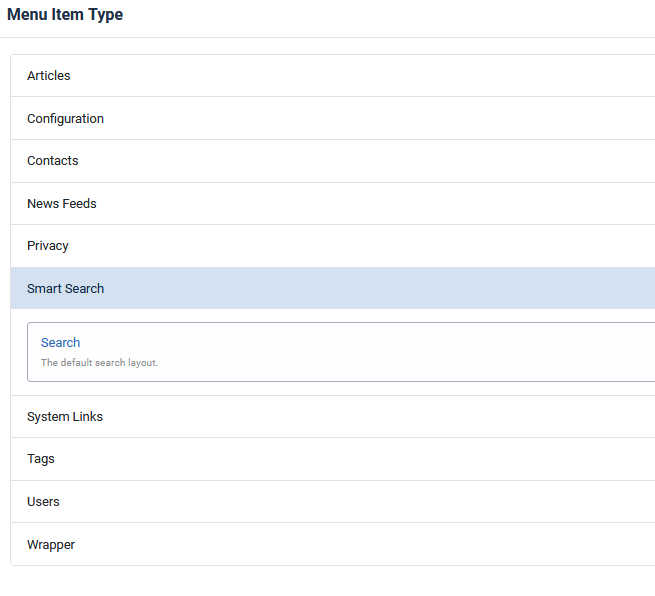
To use the filters on the page, we need a suitable menu entry.
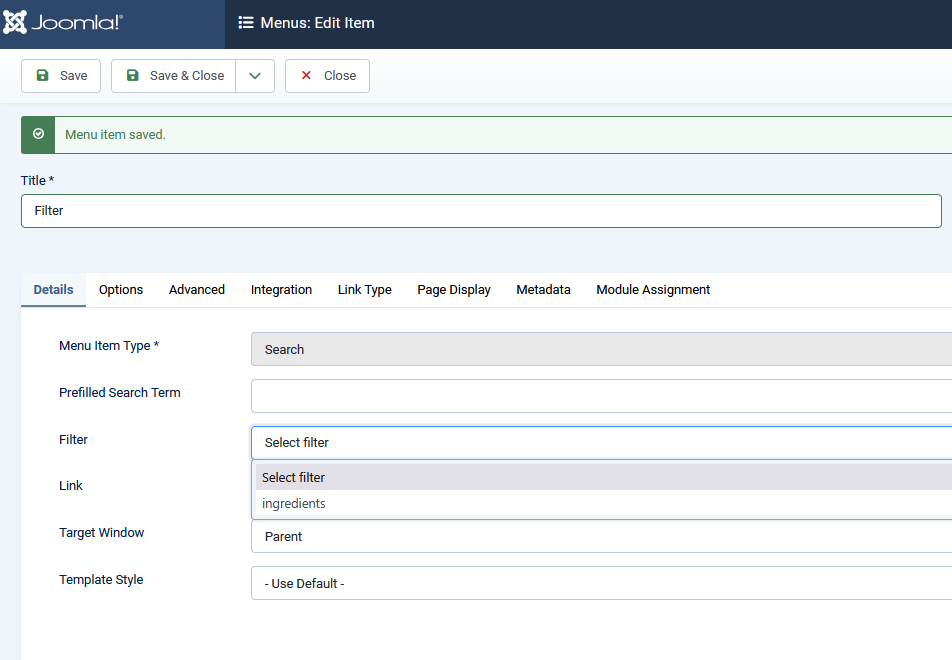
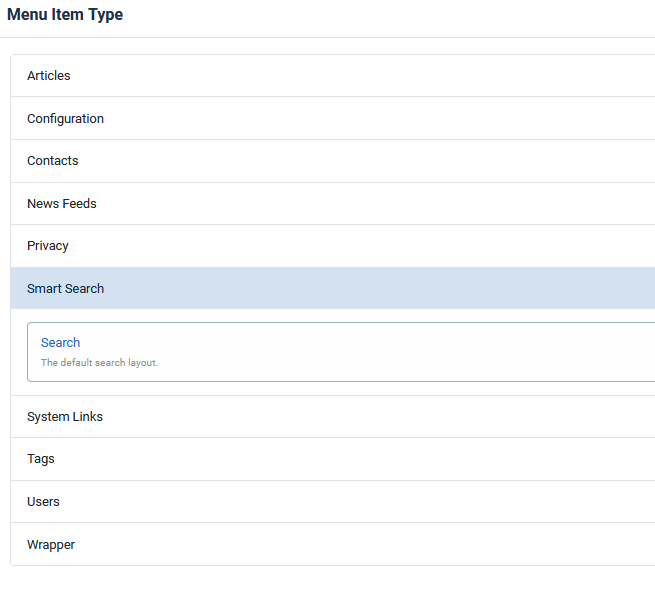
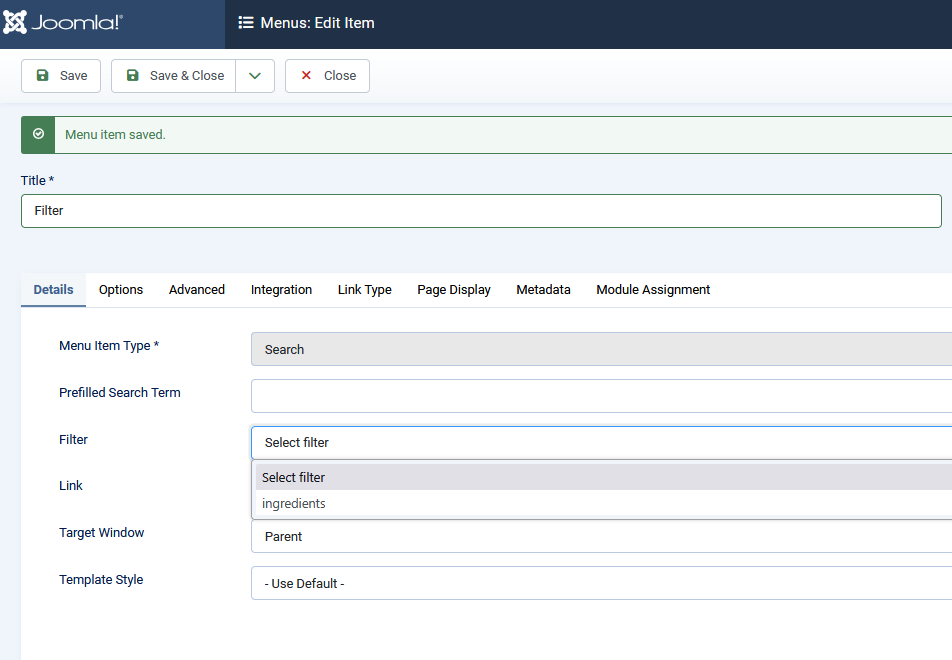
We create a new menu item ‘Filter’. We define this as Search index - Search.

Menu item for Smart Search
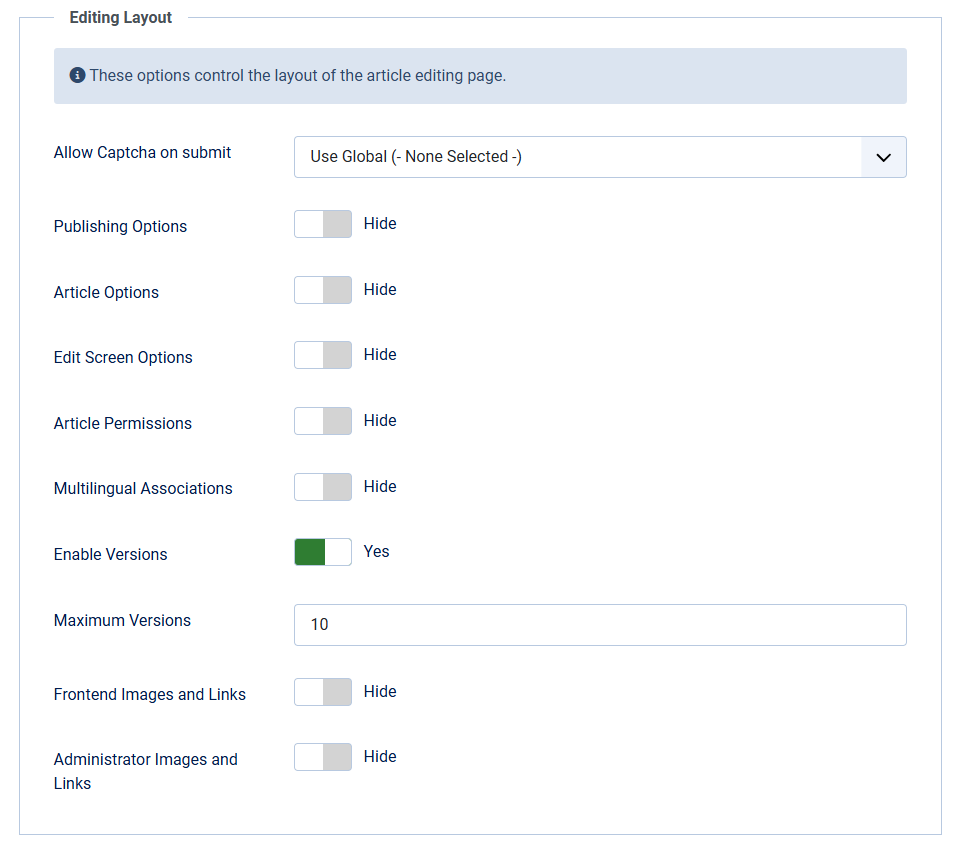
In the ‘Advanced’ tab, we set ‘Allow empty search’ to yes.
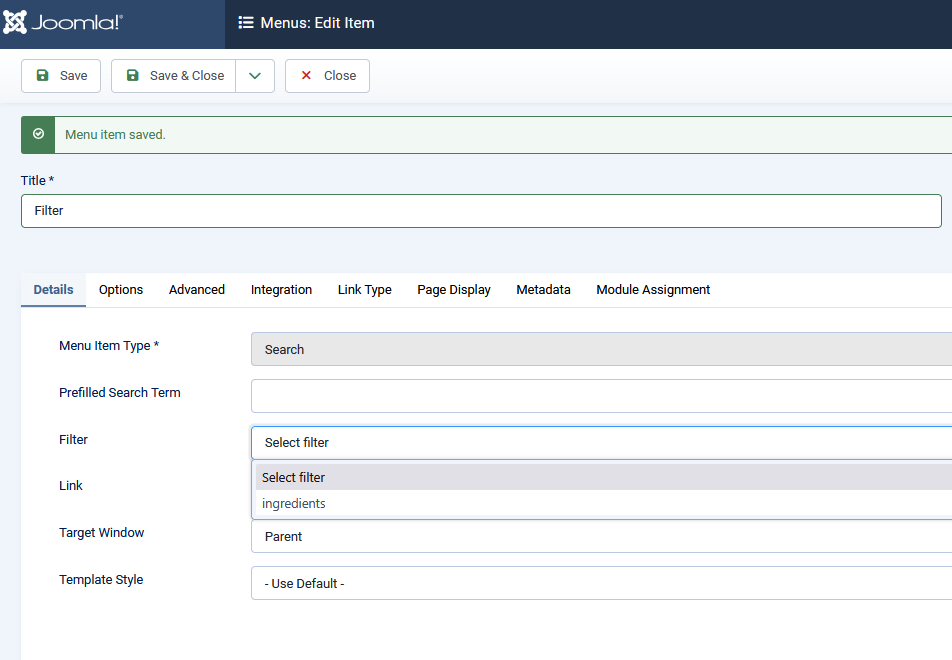
Select filter
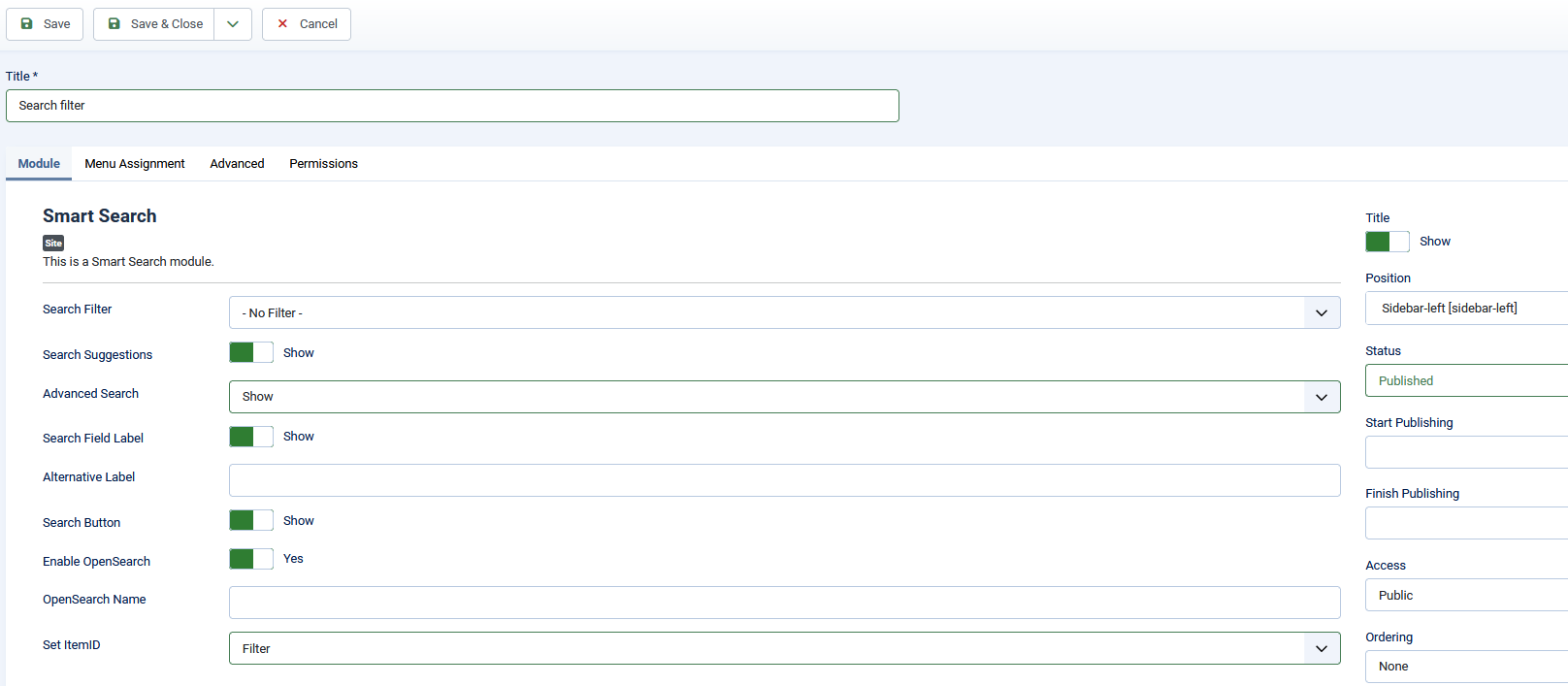
The next step is to create a module. After all, we want to display and use our filters on the website.
To do this, we will switch to the Content -> Site Modules and create a new ‘Smart Search’ module.
We define our ‘Filter’ menu item as ItemID and set the ‘Advanced search’ to ‘Display’.
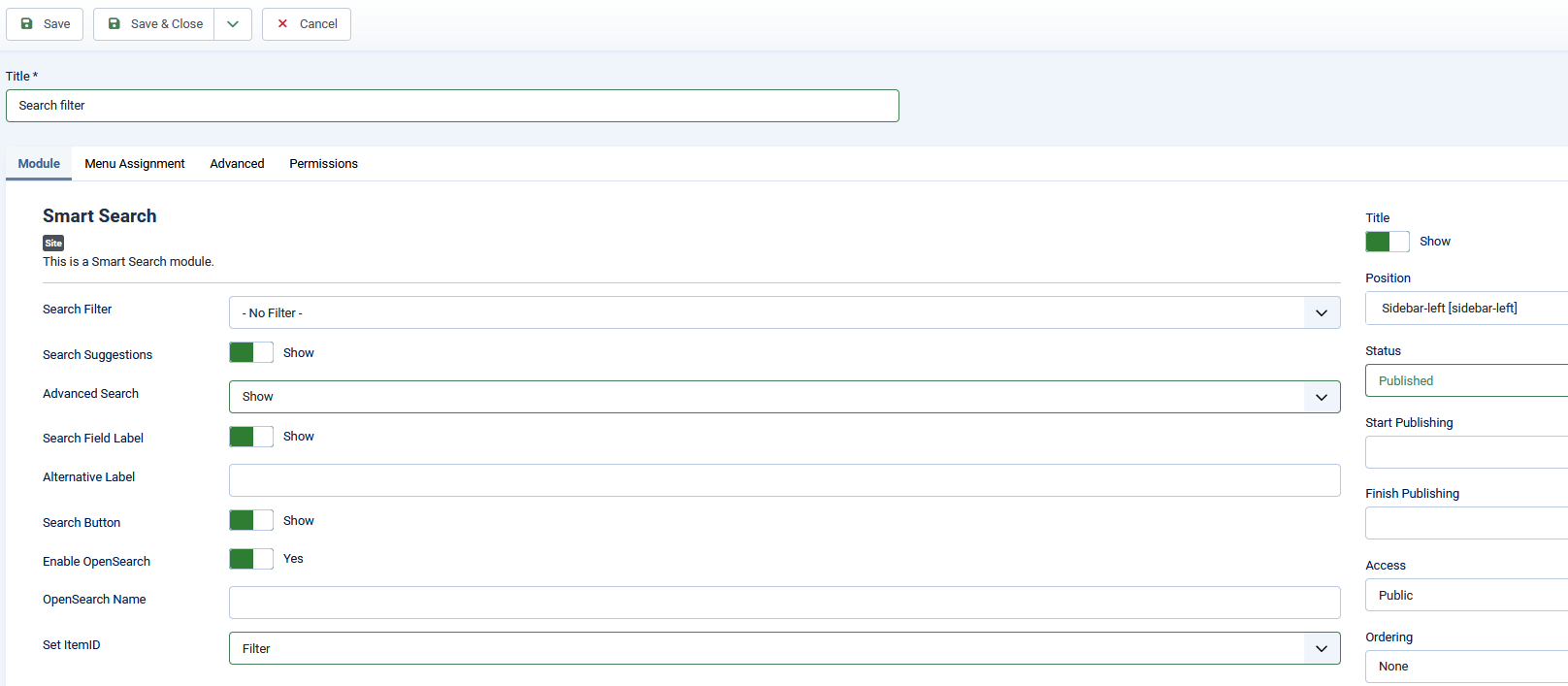
Module
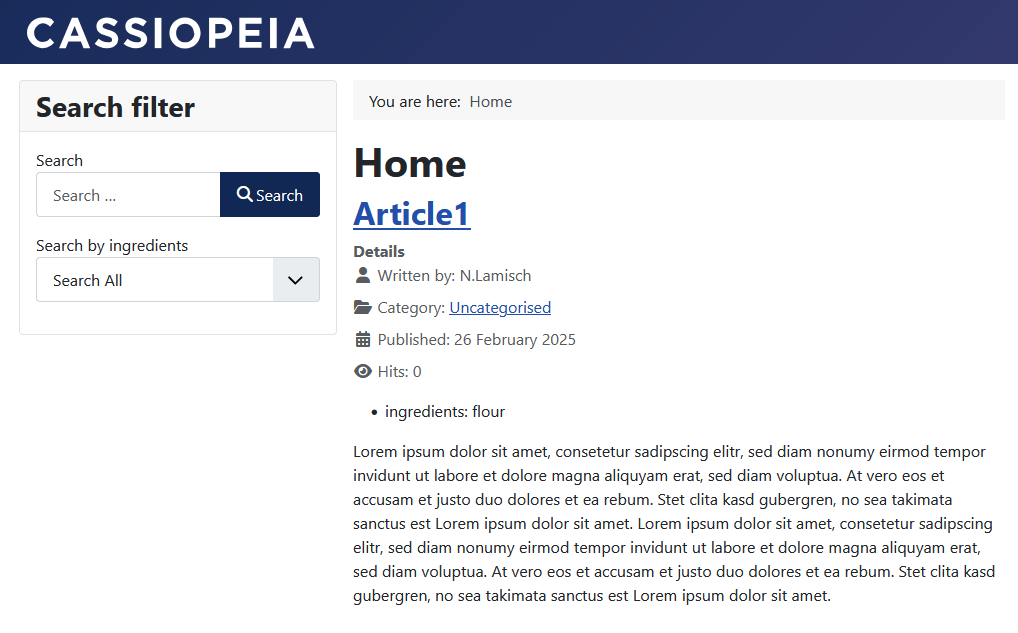
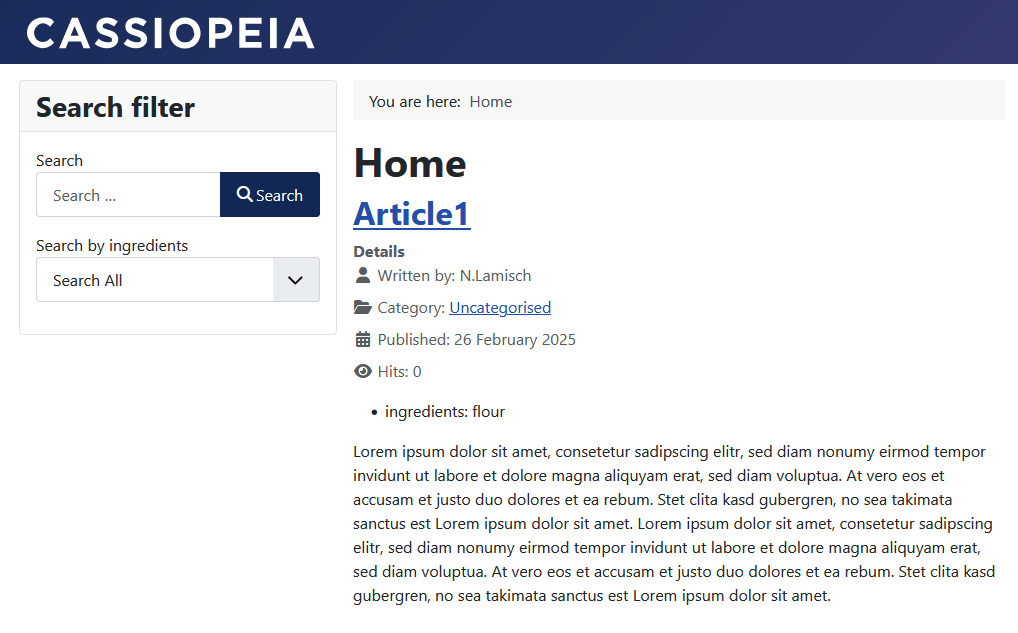
On our website it will look like this:
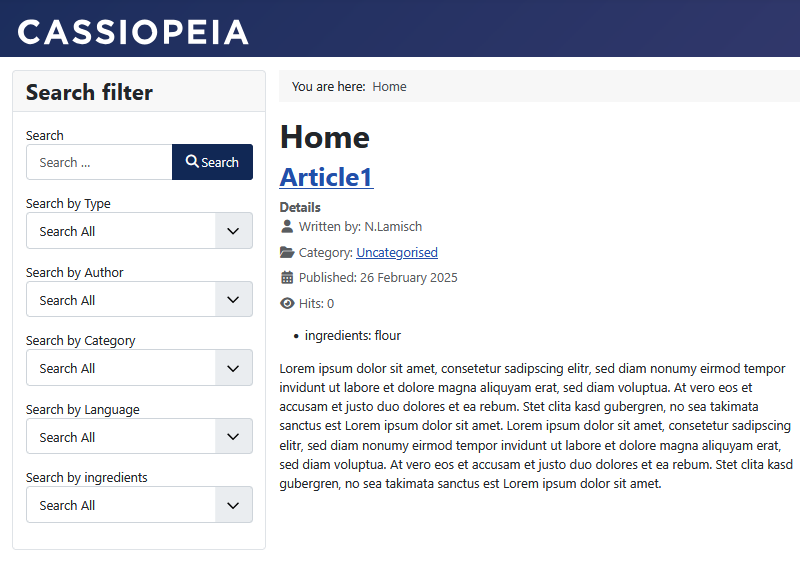
Frontend
As you can see, we now also have other filter types such as language, author, categories... But we don't want to display these at all.
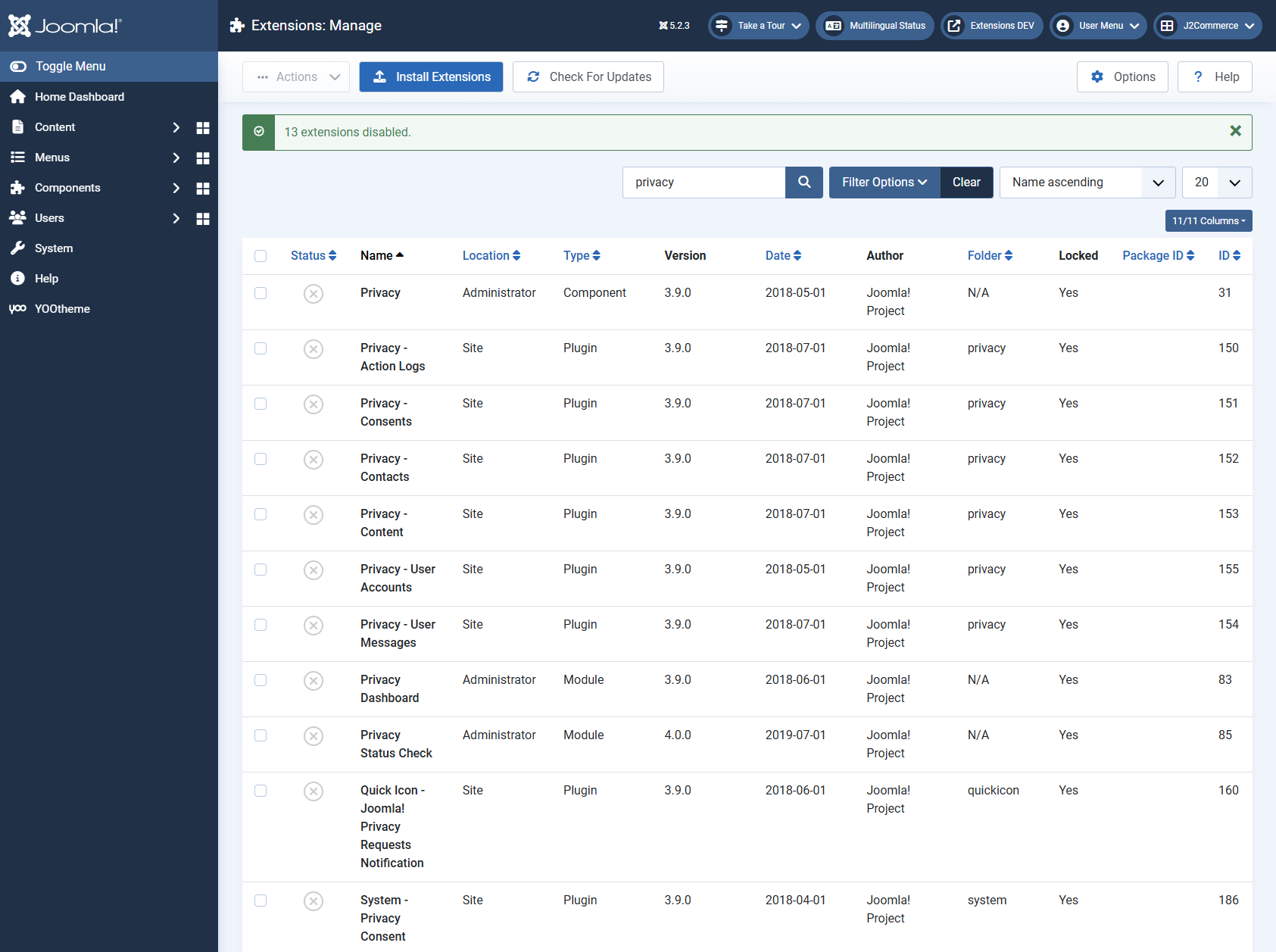
To change these settings, we go back to the backend and go to System -> Plugins. There we enter ‘search’ in the search bar at the top.
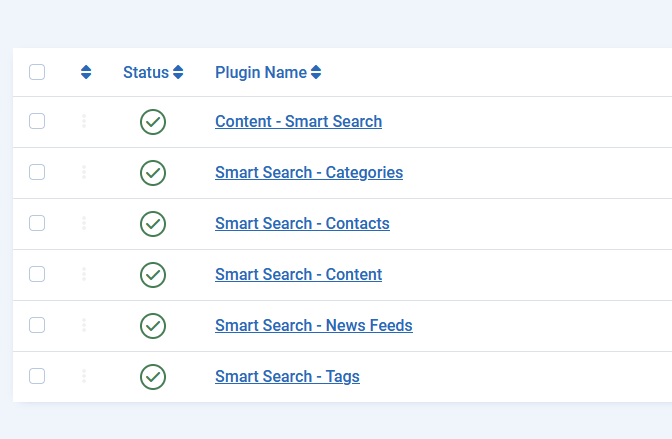
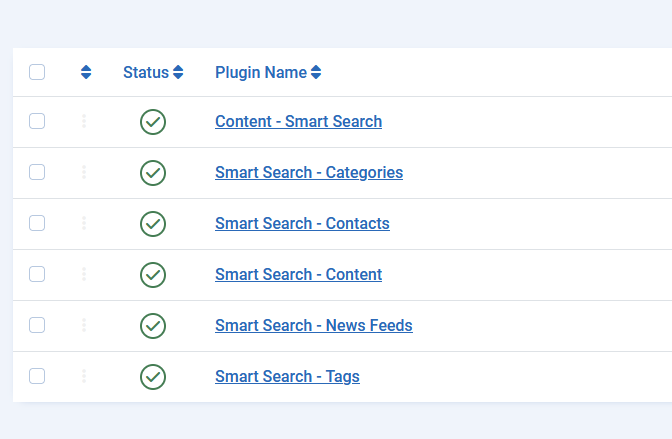
We see a list of the plugins that affect the search index.
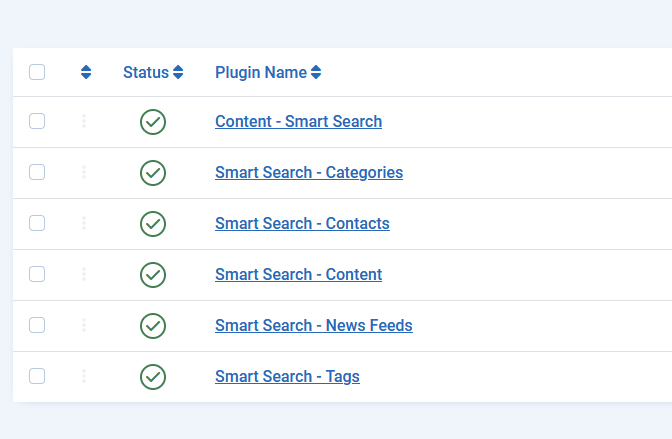
Search plugins
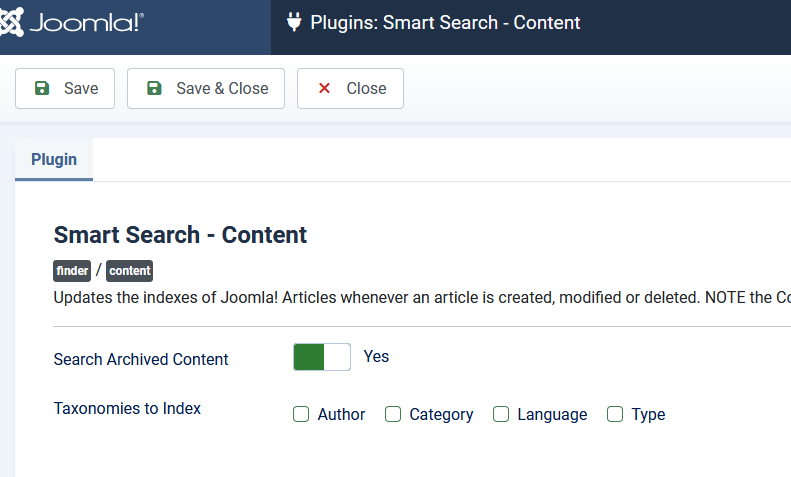
We open the ‘Smart Search - Content’ plugin and can make settings for the taxonomies. In our case, we deactivate all checkboxes.
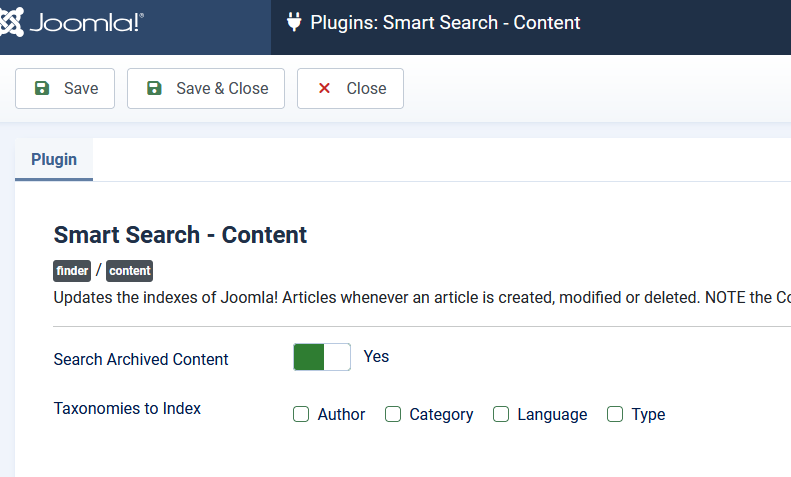
Options in Smart Search - Content Plugin
And we do the same in the Smart Search - Categories plugin.
If we now switch back to our page and reload the page, we still see no difference in our module. As our content was already indexed, we need to recreate the search index.
To do this, we switch back to Components -> Smart Search -> Index and recreate the index.
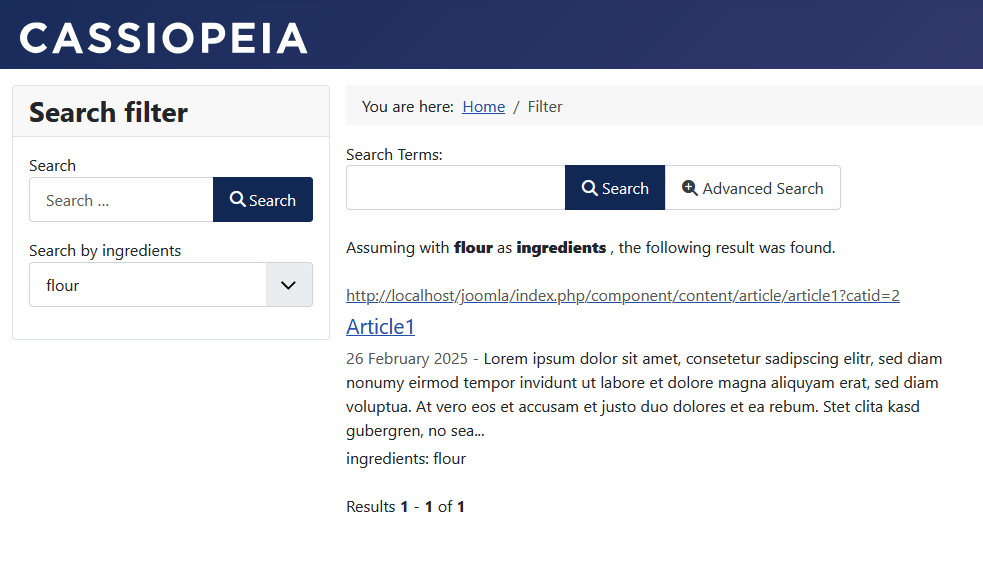
If we now go back to our website, we only have our selected filter.
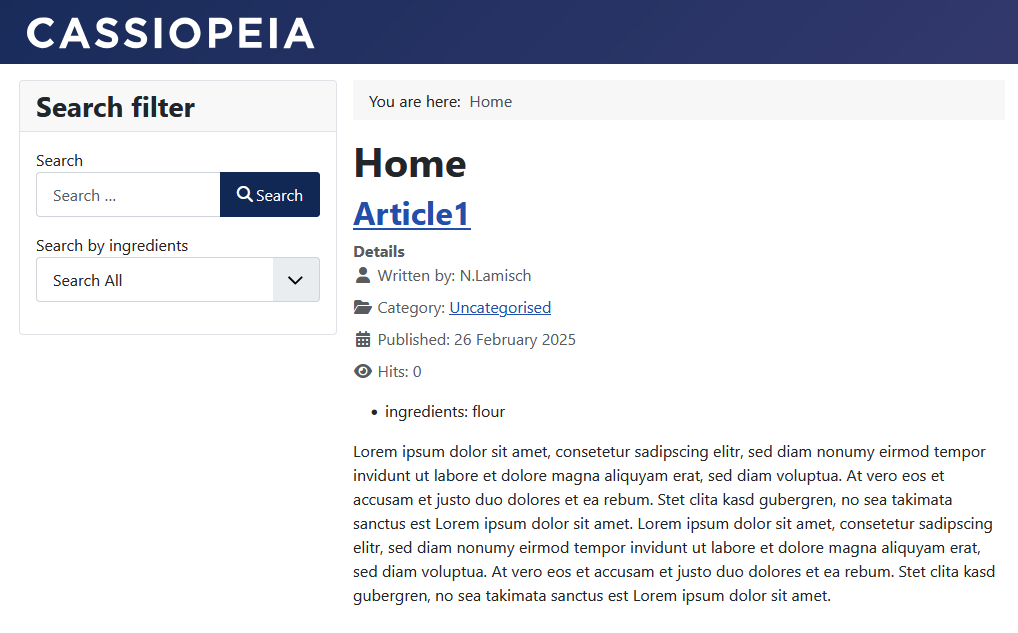
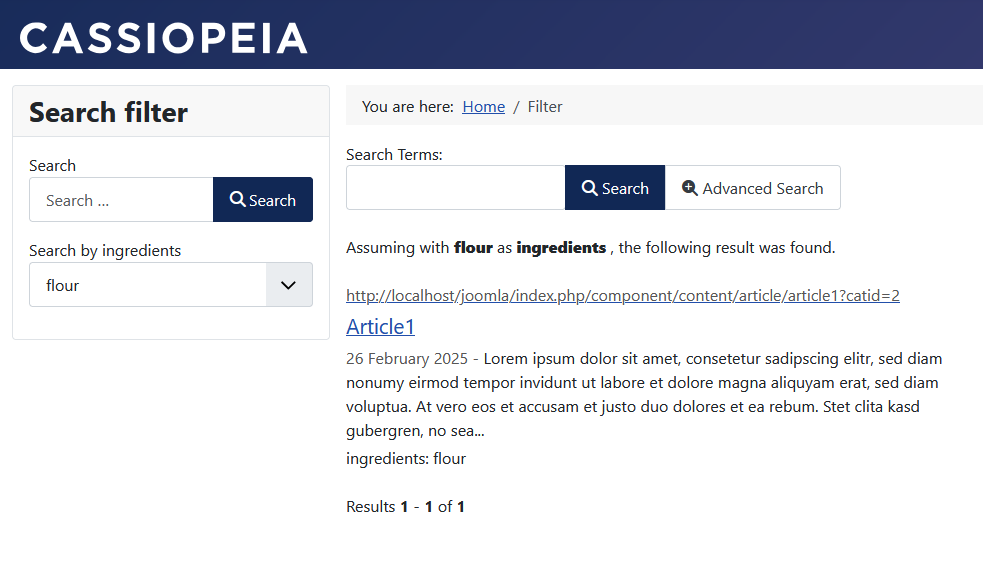
Frontend with filter
I have added a few more posts with different ‘ingredients’ and displayed them as a blog on my site. I now have my ‘Ingredients’ filter on the left and can make a selection.
As we have allowed the empty search in our ‘Search’ menu item, we can now simply select one of our filter options.
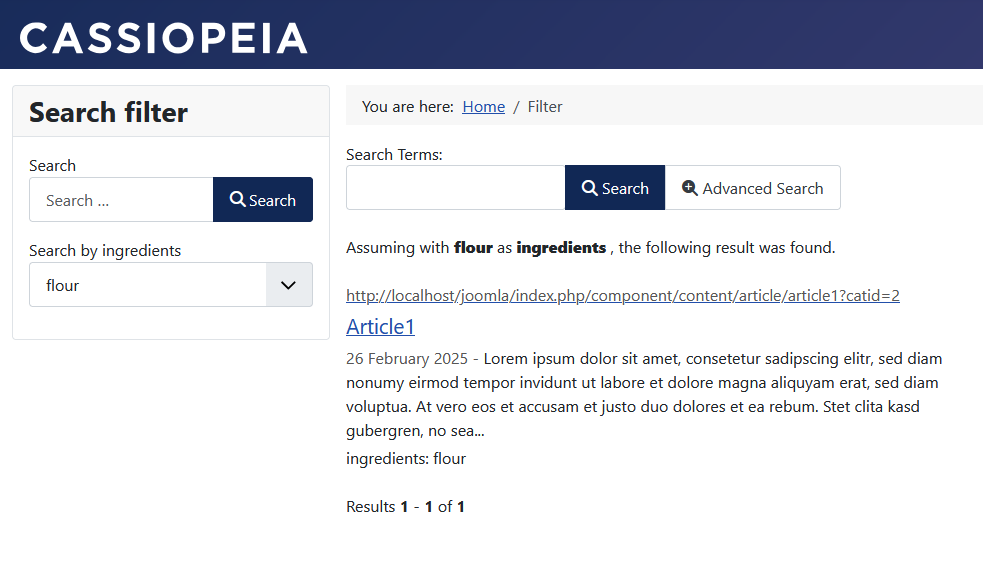
Selected filter
And that's it! You've enhanced your users' search experience with just Joomla core!
Some articles published on the Joomla Community Magazine represent the personal opinion or experience of the Author on the specific topic and might not be aligned to the official position of the Joomla Project